- Within the ticket, click on 'Merge' from the top menu toolbar.
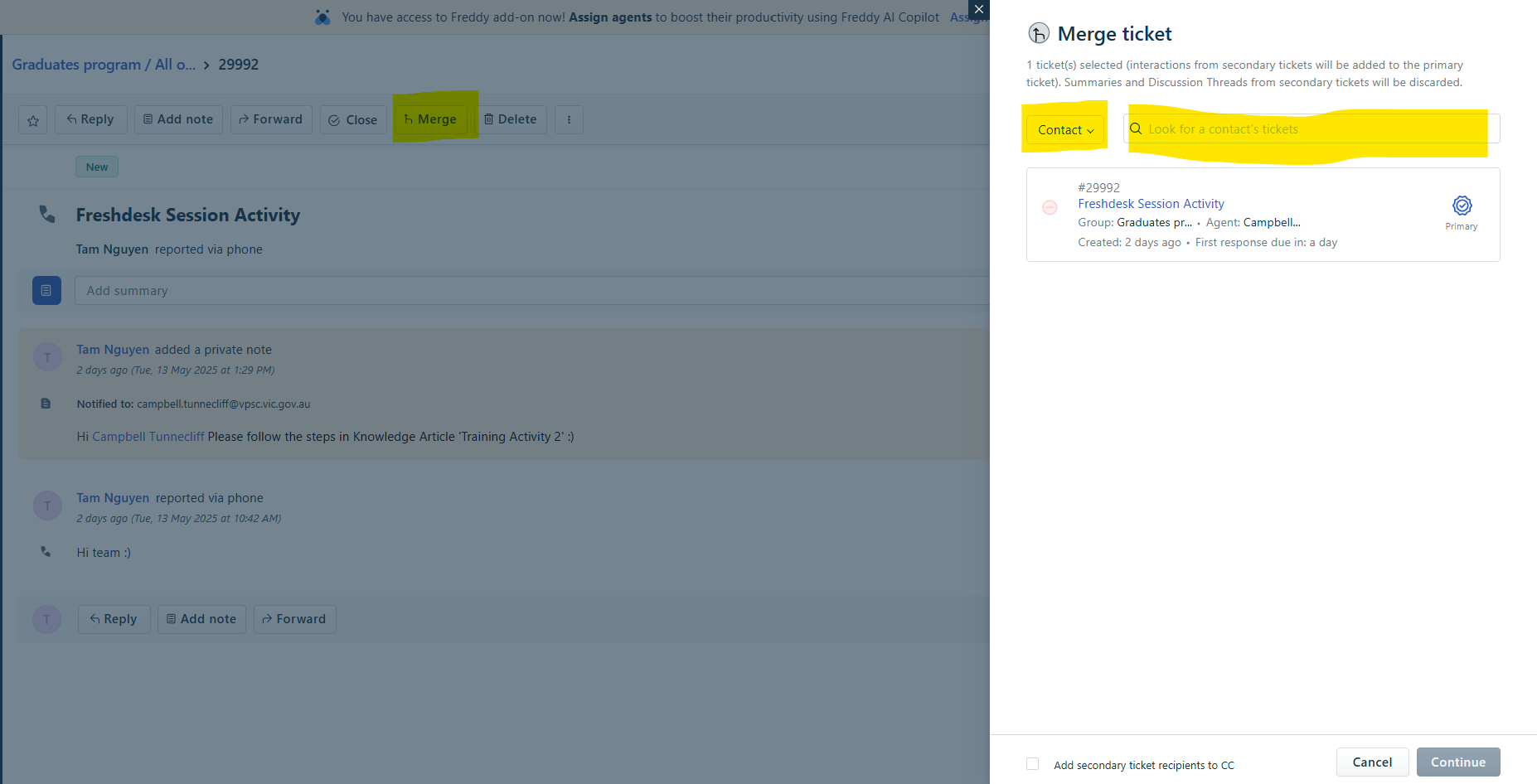
- Click on the drop down list where it currently shows 'Contact'.
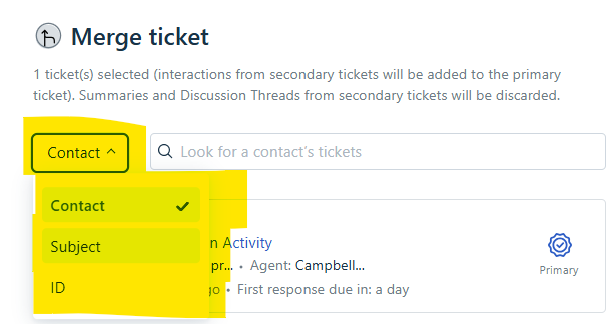
- Choose the appropriate search filter you would like to use to look for the corresponding ticket for the merge.
- If the ticket ID is not known, then it is best to search with the Contact.
- Enter in the e-mail address (if known), subject or ticket ID.
- As the field value is entered, list of possible results will appear.
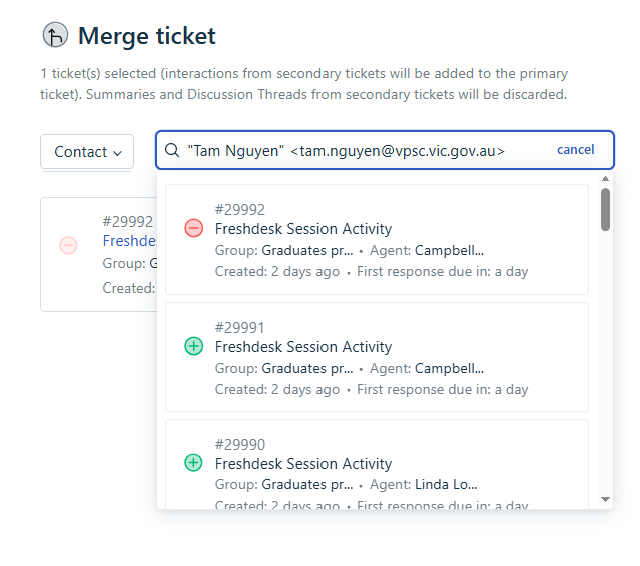
- Click on the green circle with the + for the ticket you would like to merge with.
- The ticket will then appear in the background.
- For example, ticket #29992 was selected and is now appearing in the background.
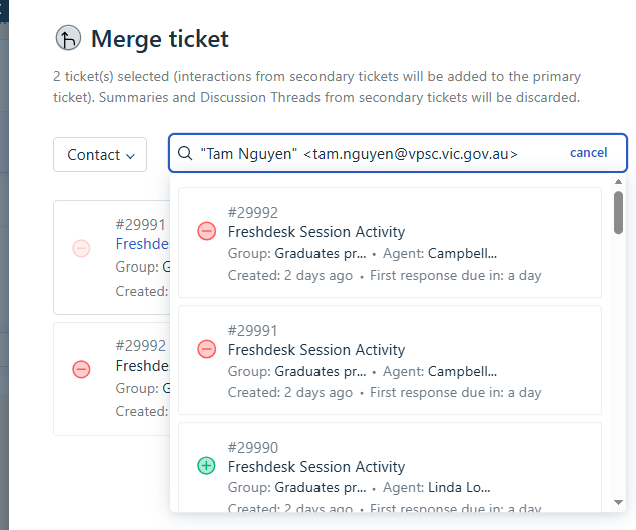
- Click on the background behind pop up window.
- Check the two tickets details.
- Ensure the primary ticket is correct.
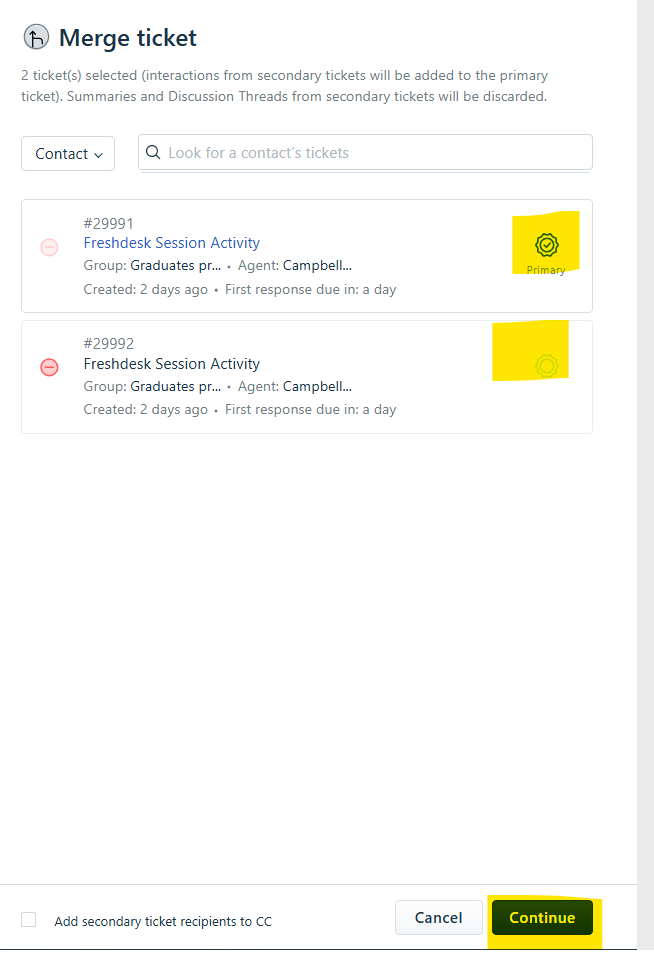
- Click on Continue.
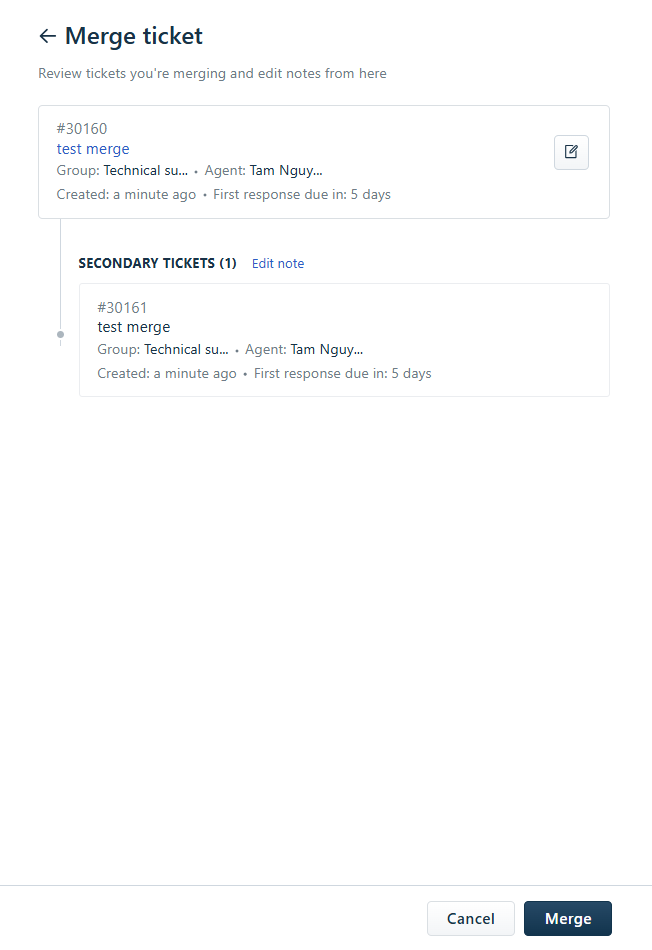
- Check ticket merge details.
- Click Merge to proceed.
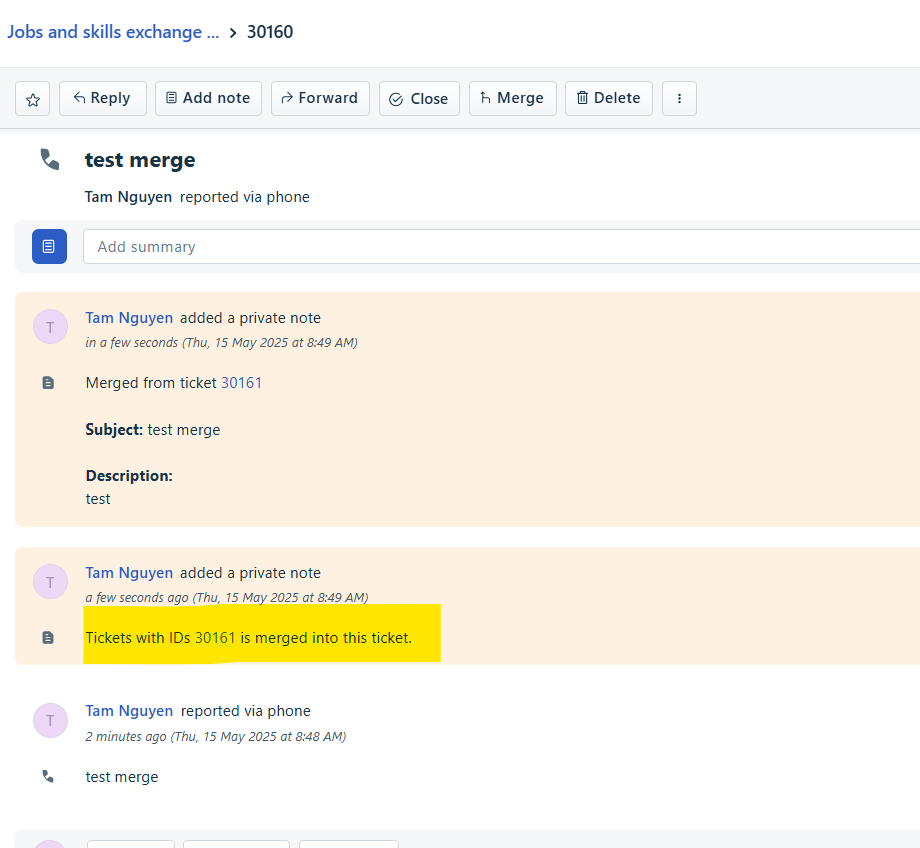
- The Merge will then show in the ticket as below.
Was this article helpful?
That’s Great!
Thank you for your feedback
Sorry! We couldn't be helpful
Thank you for your feedback
Feedback sent
We appreciate your effort and will try to fix the article