There are two methods to link a ticket to a tracker.
First method:
Navigate to the Tickets view panel.
Click on the ticket you would like to link to a Tracker.
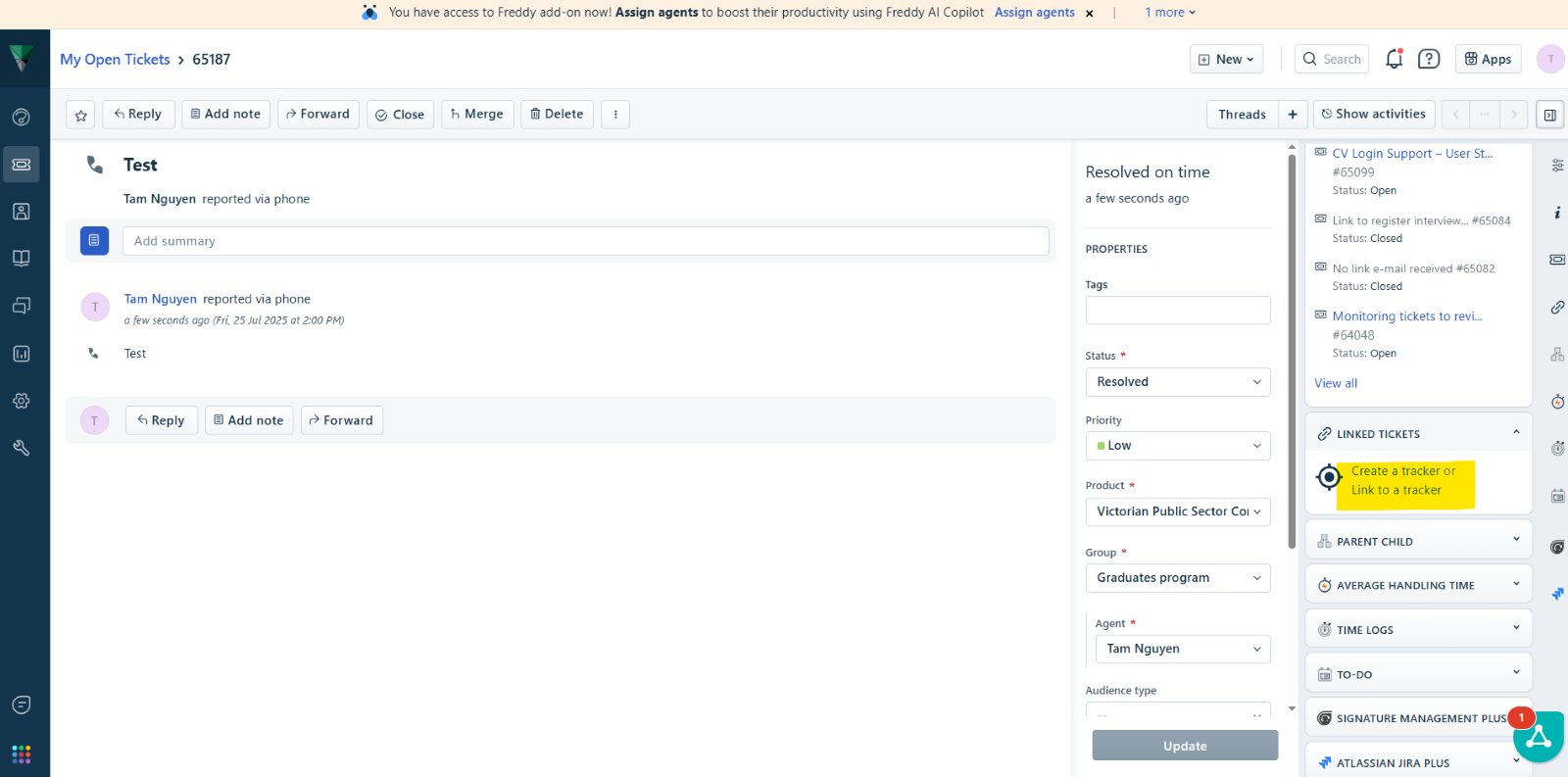
Select the Linked Tickets icon from the right panel on the Ticket Details page.
Click on Link to a Tracker.
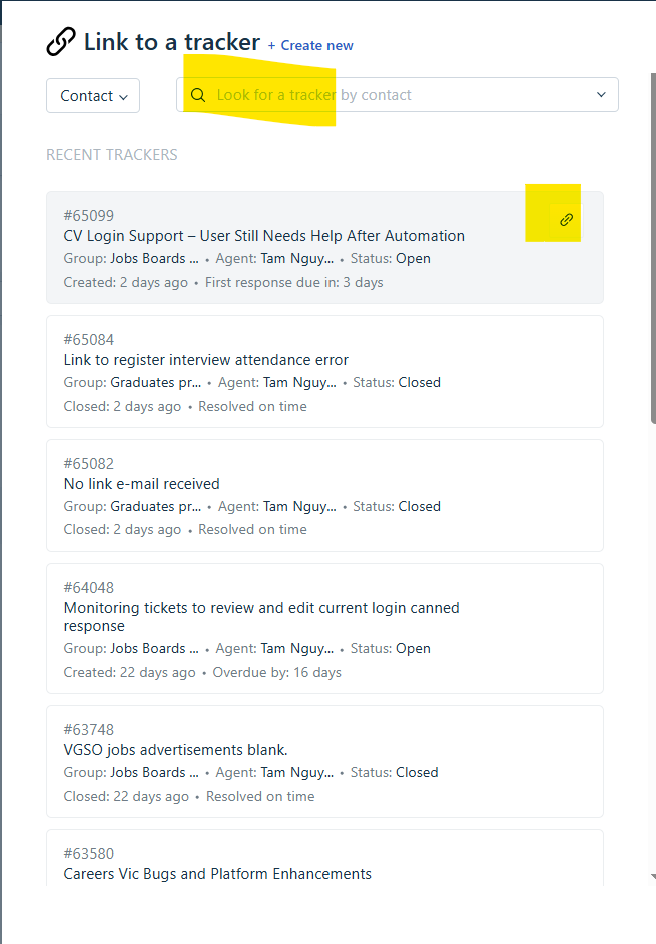
A ‘Link to a tracker’ pop up window will appear.
Recent trackers will appear. Hover to the tracker and click on the link icon.
Or search for tracker in the search box.
The ticket will be linked to the Tracker; it will have the ‘Related’ tag when you view it in the Tickets tab.
Second method:
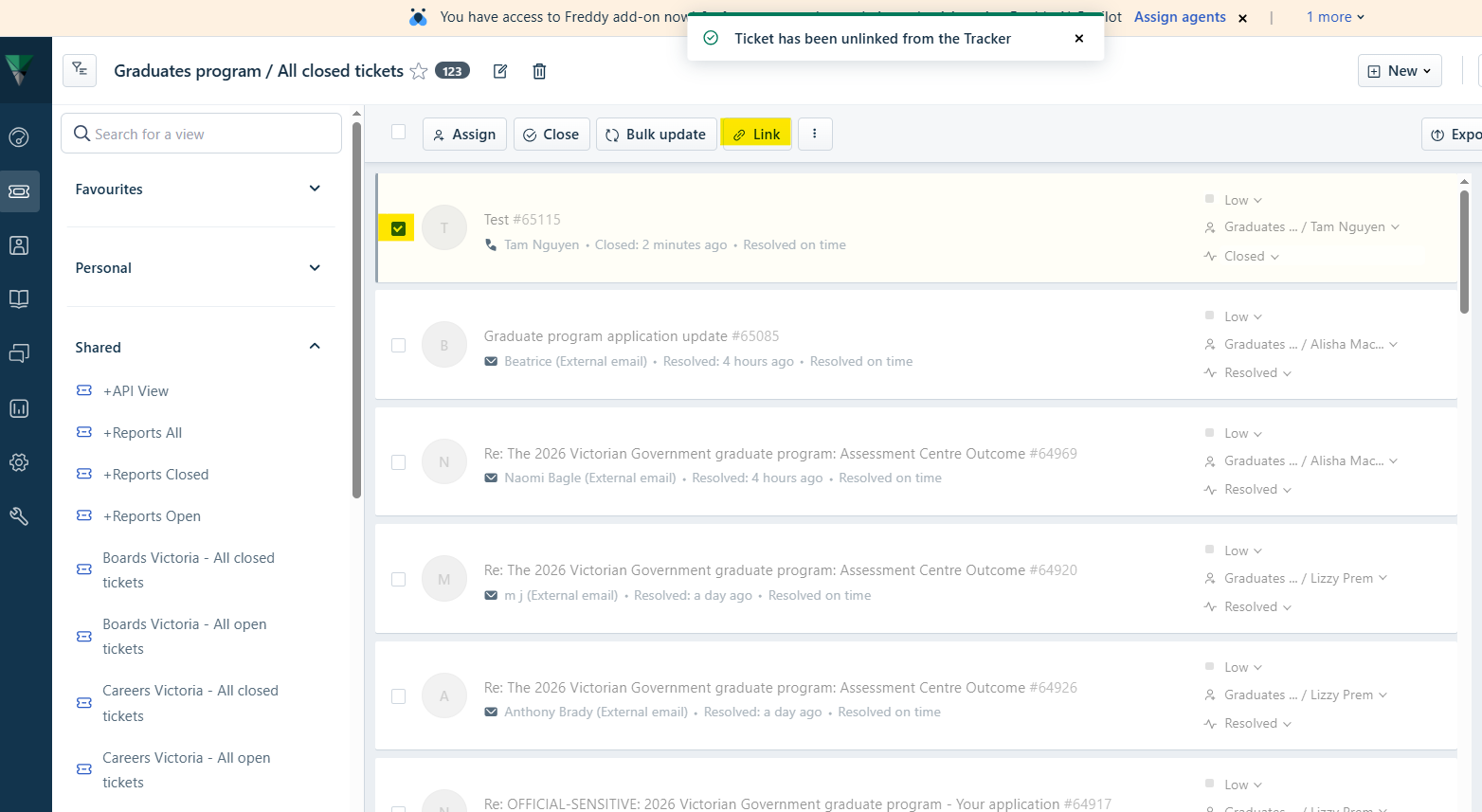
Within the Tickets view panel, select the ticket/s you wish to link to a tracker by ticking the checkbox of the tickets.
A pop up menu will appear at the top. Click on Link.
A prompt will appear asking to ‘Link to a parent’ or ‘Link to a tracker’.
Select Link to a tracker.
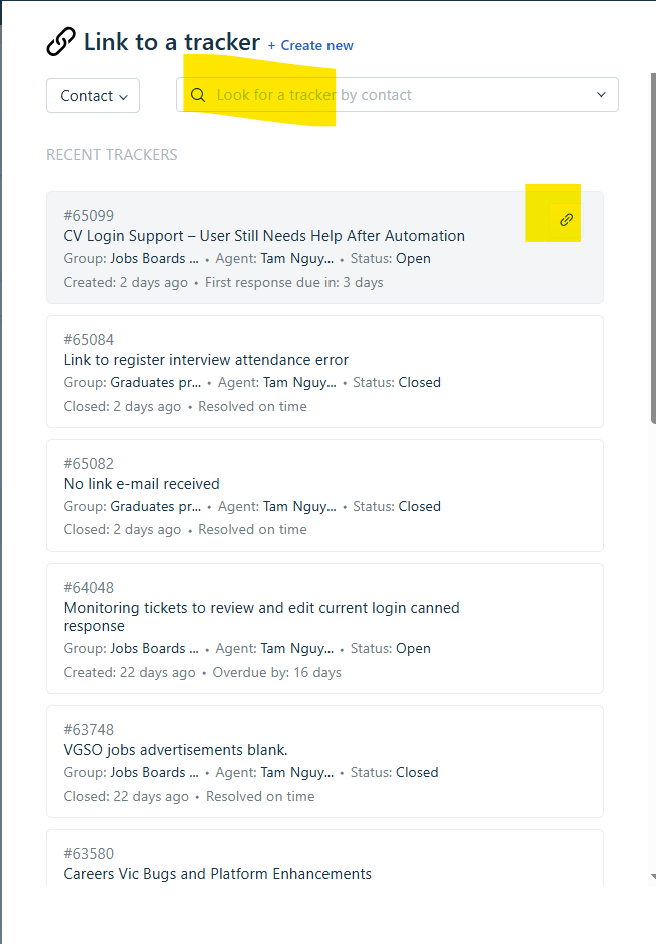
A ‘Link to a tracker’ pop up window will appear.
Recent trackers will appear. Hover to the tracker and click on the link icon.
Or search for tracker in the search box.
The ticket will be linked to the Tracker; it will have the ‘Related’ tag when you view it in the Tickets tab.
Once linked, the Tracker’s details will be displayed in the linked ticket widget on the related ticket.
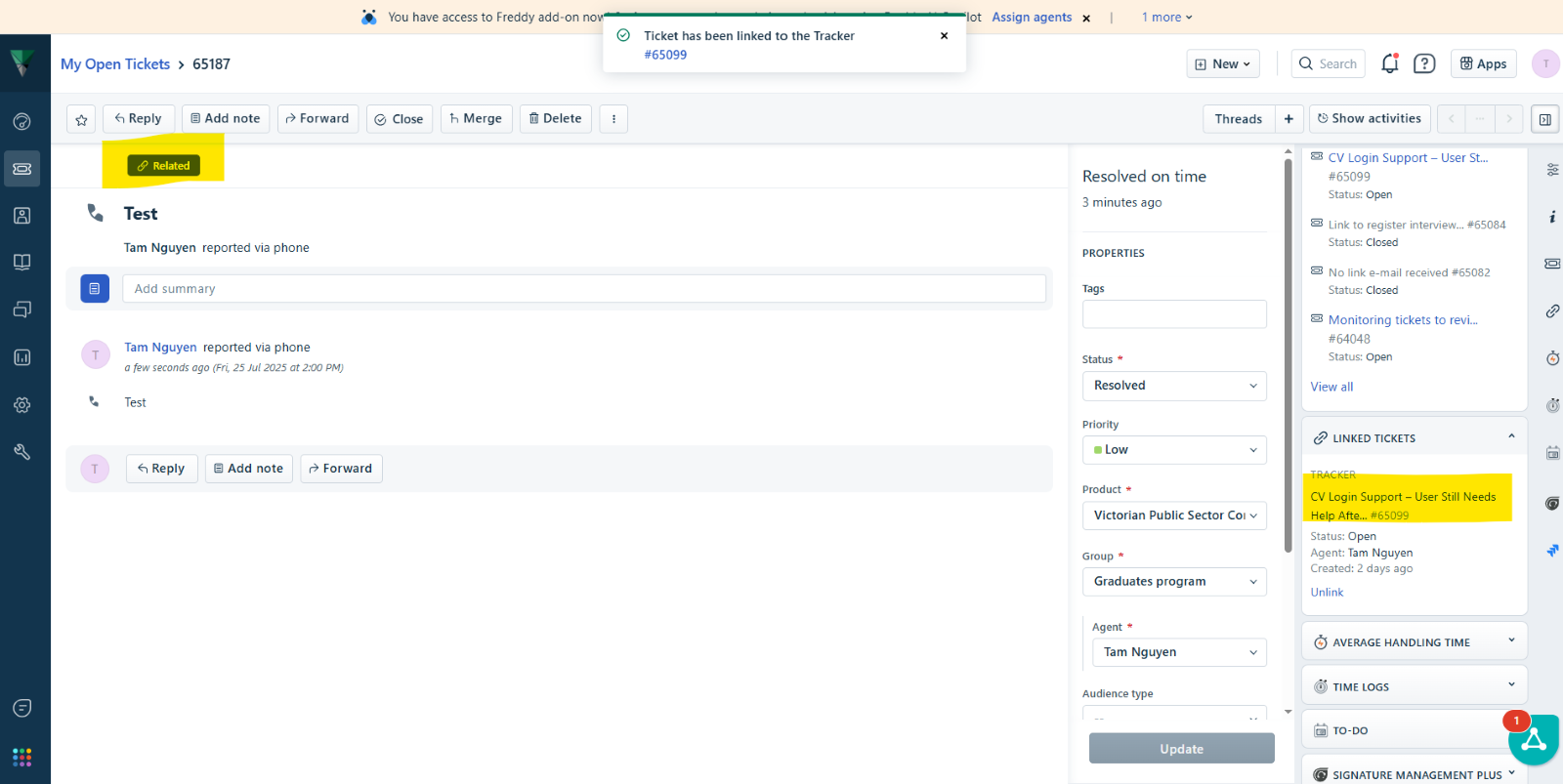
To unlink the ticket from the Tracker, click on the Unlink button.
Was this article helpful?
That’s Great!
Thank you for your feedback
Sorry! We couldn't be helpful
Thank you for your feedback
Feedback sent
We appreciate your effort and will try to fix the article