Navigate to the Tickets view panel.
Click on the ticket you would like to link to a Tracker.
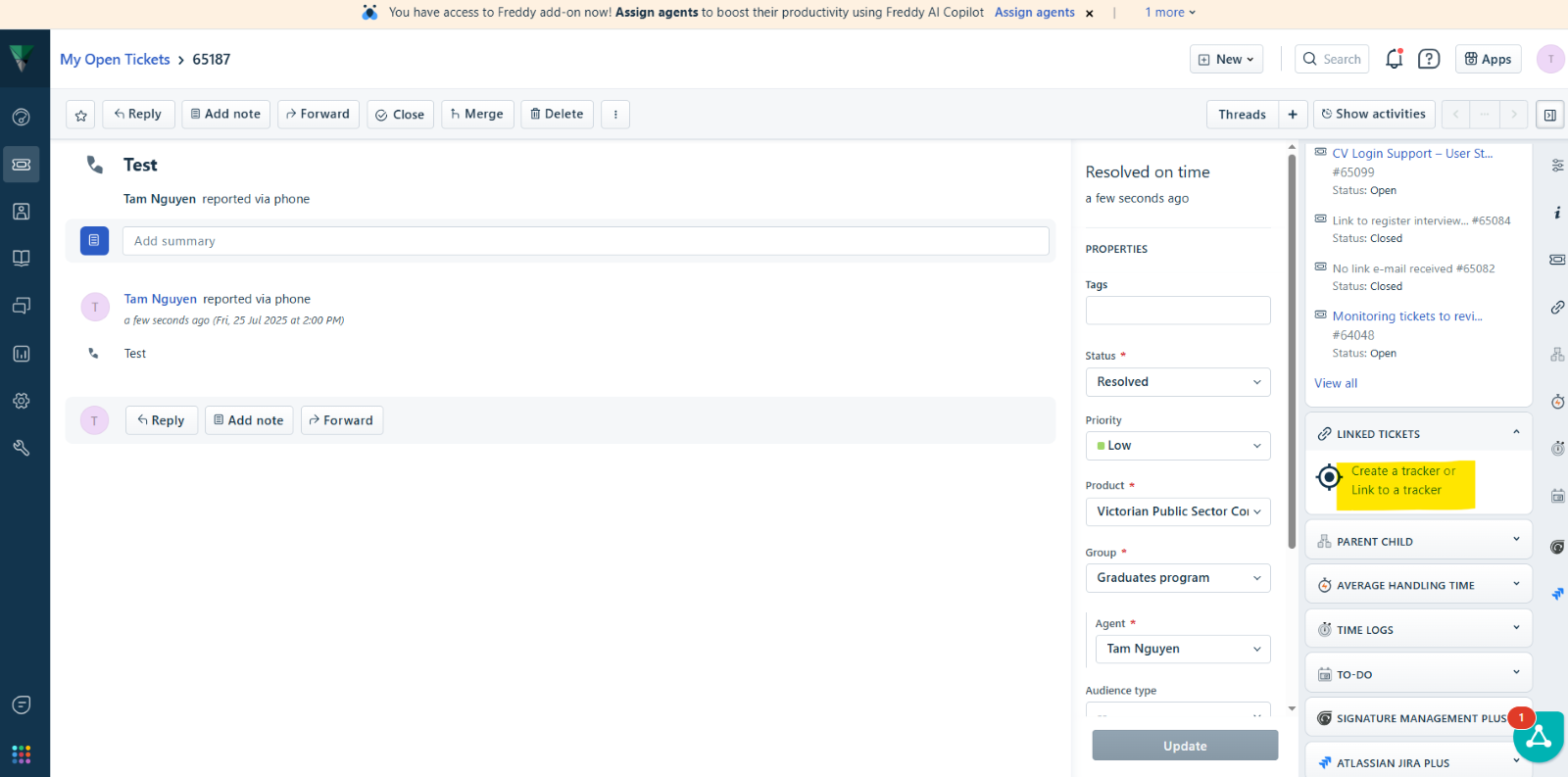
Select the Linked Tickets icon from the right panel on the Ticket Details page.
Click on Link to a Tracker.
A ‘Link to a tracker’ pop up window will appear.
Recent trackers will appear. Scroll down the recent list and check if the link tracker you wish to view is listed. If not, proceed to use the search bar to search.
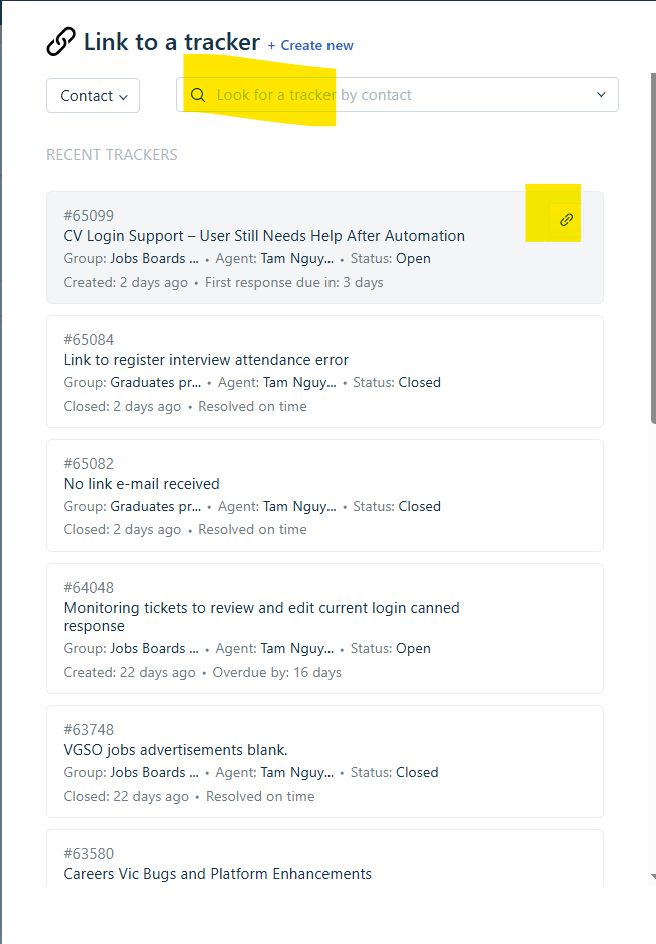
Once found, click on the Link Tracker title.
The link tracker will appear showing the title, description, number of related tickets, status and properties of the link tracker.
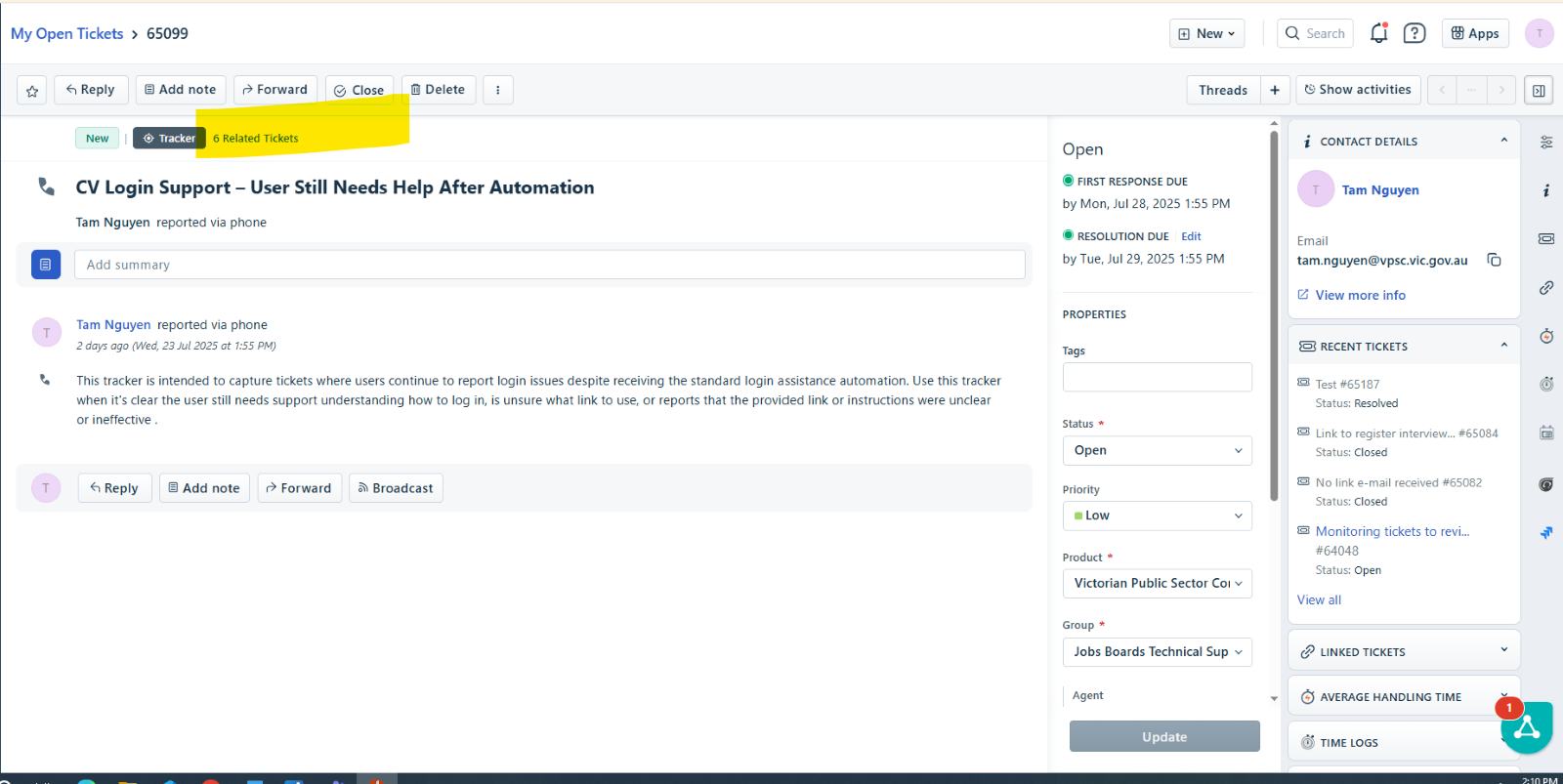
To view related tickets, click on the Related Tickets above the link tracker heading.
To send a message to all affected/linked ticket users, click on ‘Broadcast’.
Was this article helpful?
That’s Great!
Thank you for your feedback
Sorry! We couldn't be helpful
Thank you for your feedback
Feedback sent
We appreciate your effort and will try to fix the article