Benefits of Using Link Trackers
Centralised communication: One update reaches all affected users.
Better visibility: Track the scale and impact of widespread issues.
Team efficiency: Reduces duplicated work for support agents.
STEPS:
Review incoming tickets to confirm they are related to the same root cause.
Common signs include similar subject lines, keywords, or issue descriptions.
Within the ticket, navigate to the right hand side panel and click on 'Link to a tracker.'
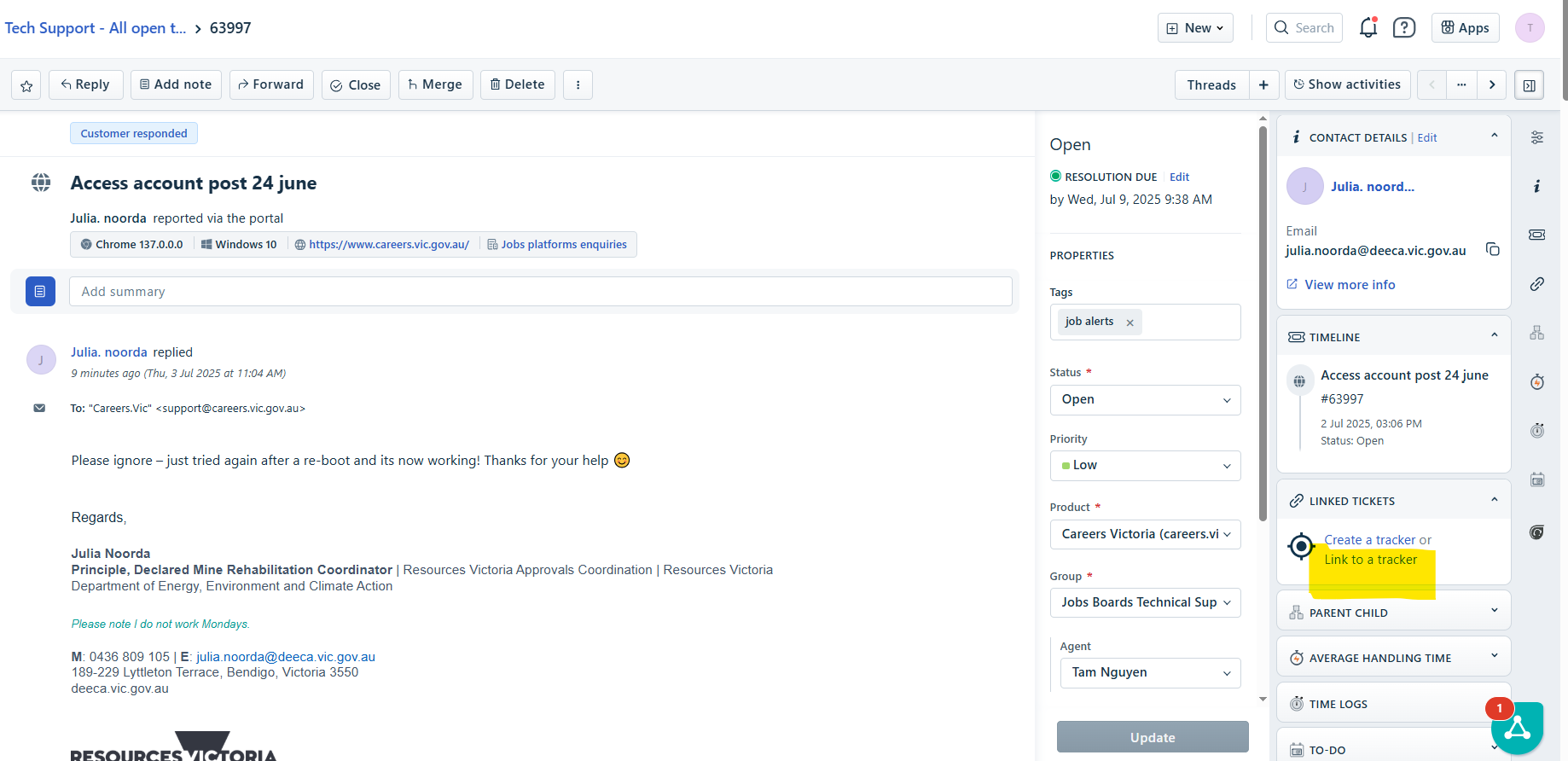
A new pop up window will appear.
Look at the list of trackers and navigate to the correct one.
Then hover the mouse towards the right of the tracker link heading and a 'link' icon will appear.
Click on the 'link' icon to link ticket to the tracker.
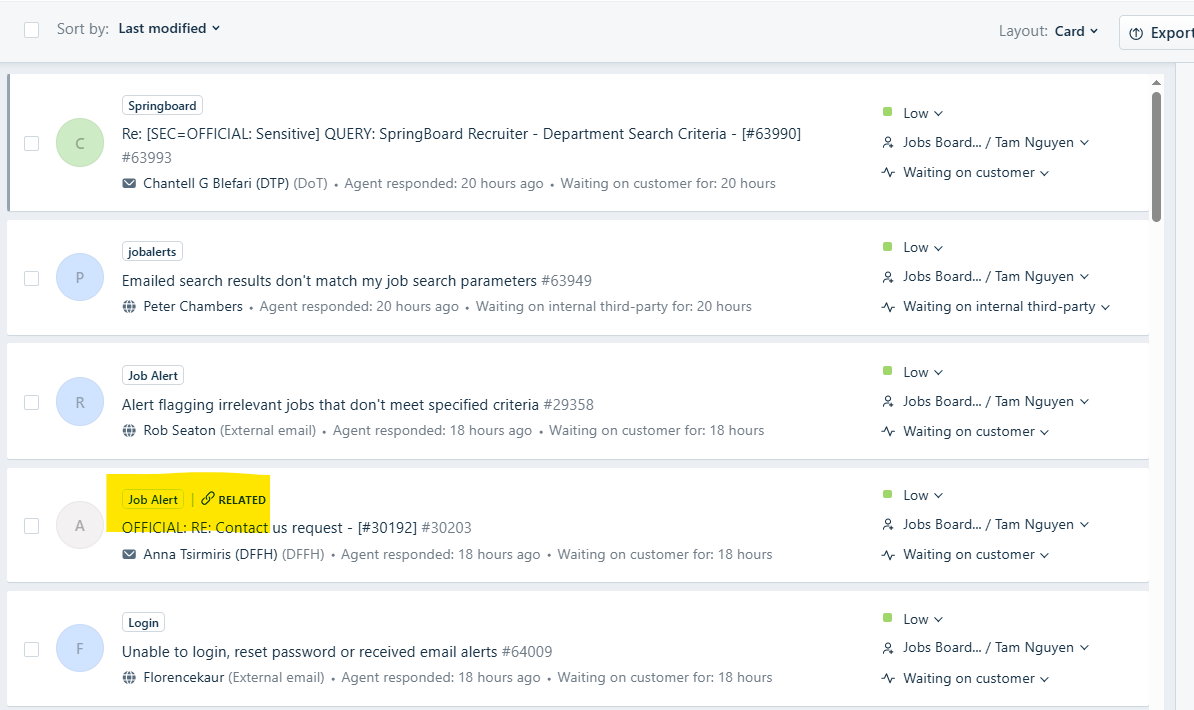
The ticket will then appear with the 'link'icon with the word RELATED in the views.
Was this article helpful?
That’s Great!
Thank you for your feedback
Sorry! We couldn't be helpful
Thank you for your feedback
Feedback sent
We appreciate your effort and will try to fix the article