TABLE OF CONTENTS
Edit a Ticket without sending a Message
To edit a ticket without sending a response to the requester:
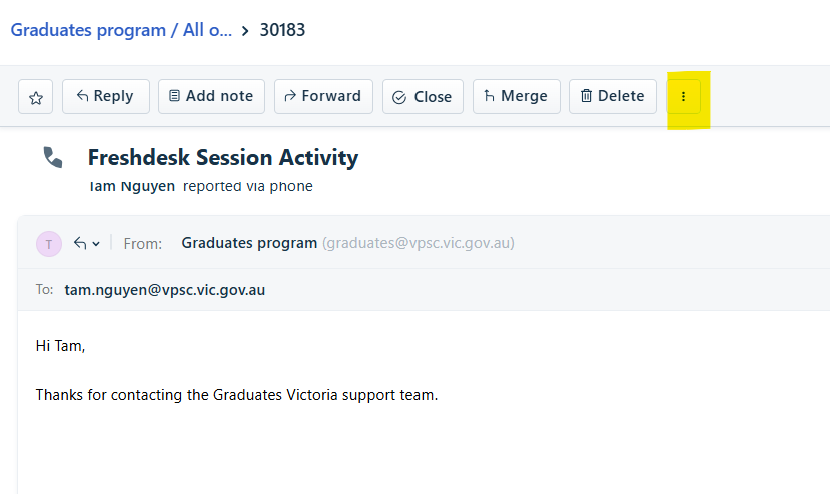
- Navigate to the toolbar at the top of the ticket and click on the 'MORE' icon.
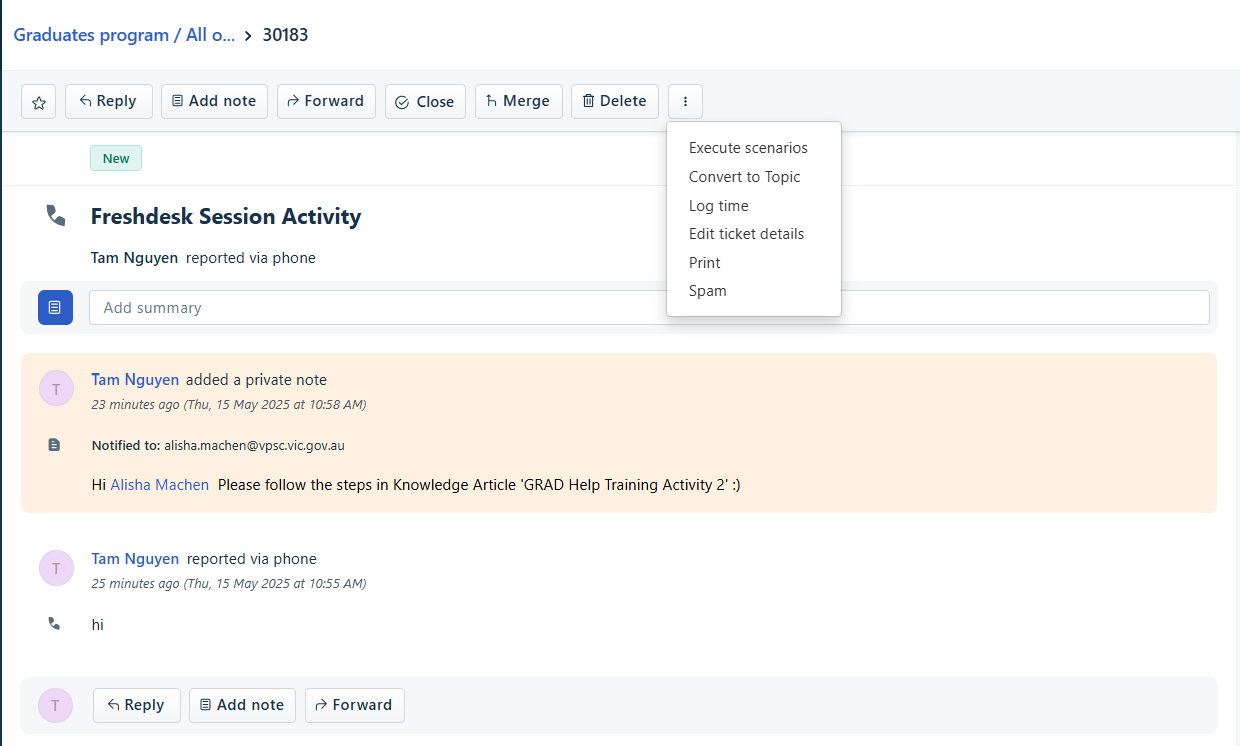
- A drop down list will appear.
- Select 'Edit ticket details'.
- A pop up window will appear.
- The following can be edited:
- Contact
- Subject
- Description of the ticket.
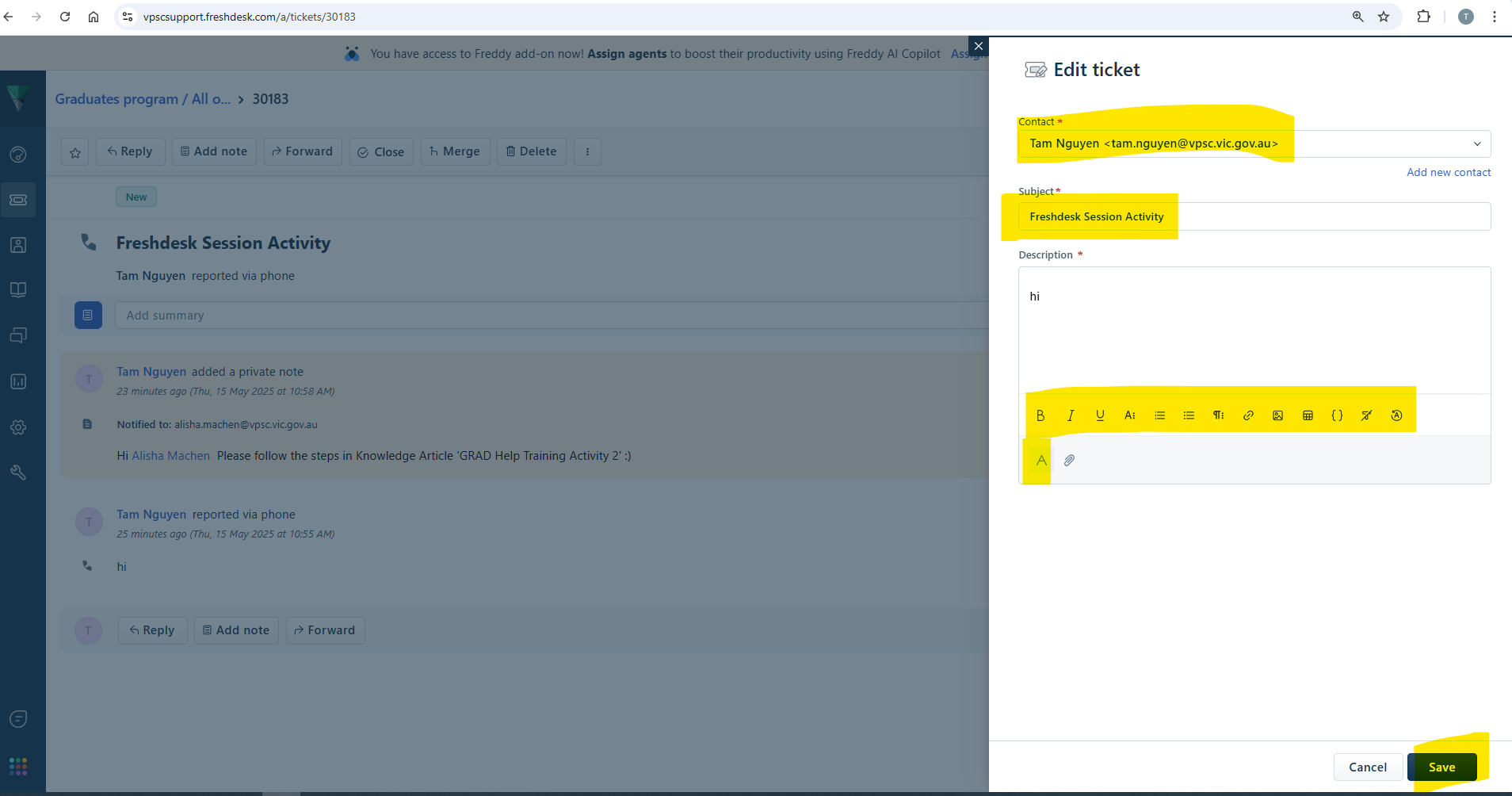
- Once the edits have been completed.
- Click on SAVE.
Edit a Reply
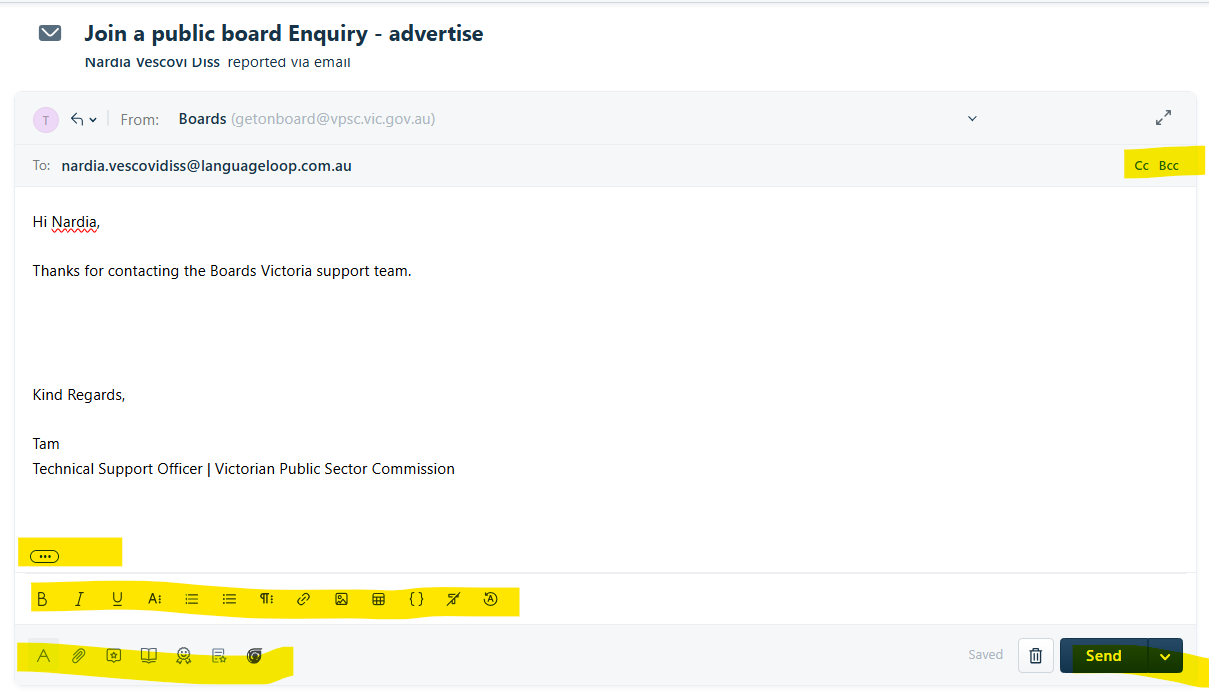
- Click on REPLY at the top of the message to open a Reply window.
- Access the available editor panels highlighted in yellow to make edits.
- Once complete, click SEND.
Edit a Forward Message
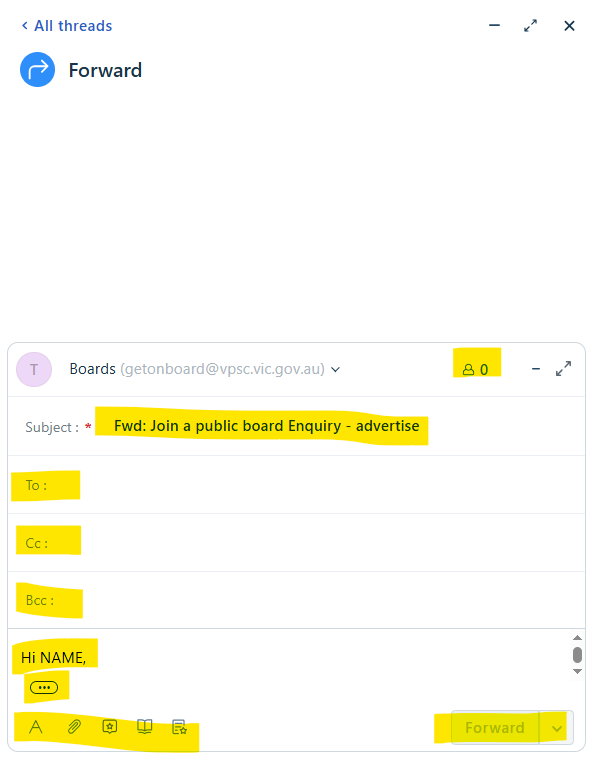
- Click on 'FORWARD' at the top of the ticket to start a forward message.
- Access the available editing features highlighted in yellow to make adjustments or change to the message.
Once the message is ready to send, click on Forward to send message.
Edit a Contact
- You can edit a CONTACT via two methods.
METHOD 1
- You can do so within the ticket by navigating to the top right hand side.
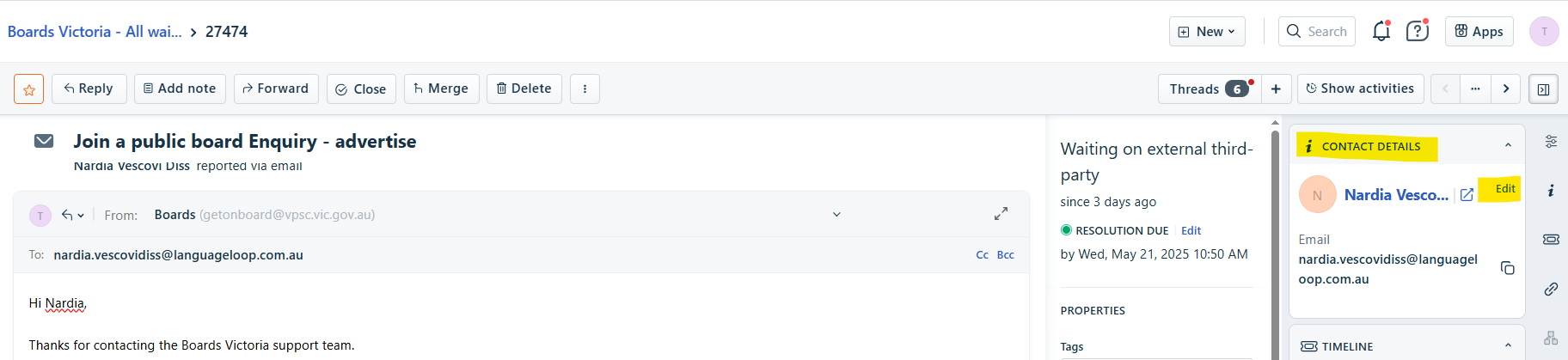
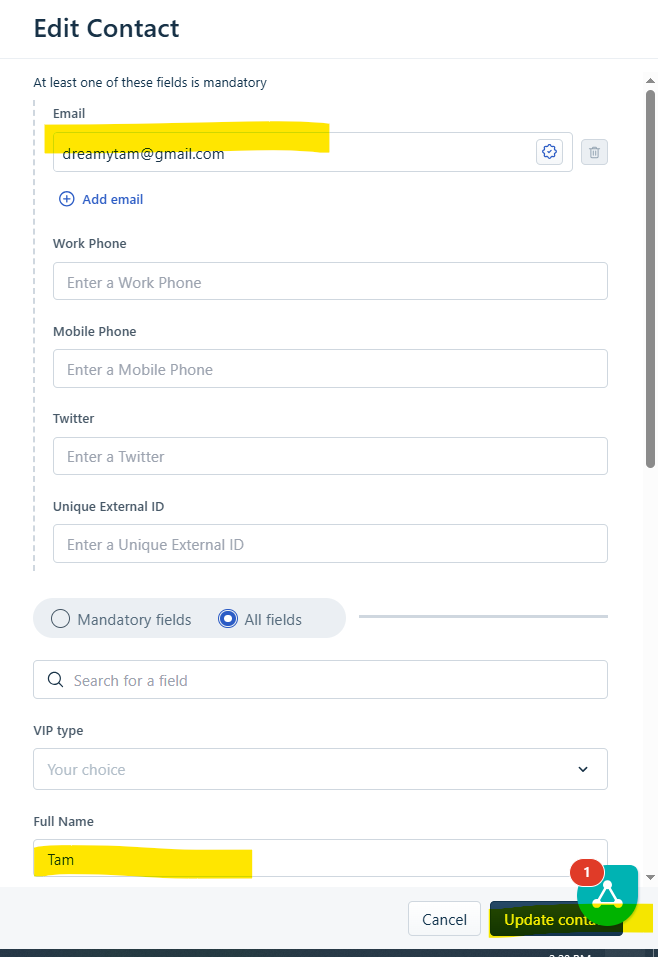
- Under the Contact Details section, click on Edit.
- Fill out details as required.
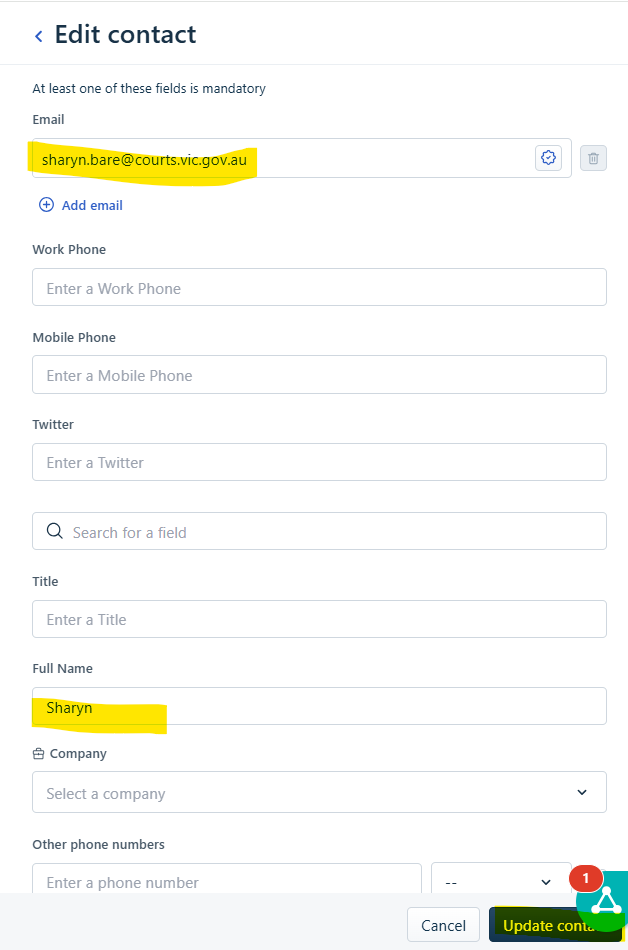
- When ready, click on Update Contact.
METHOD 2
- Via the main menu on the left hand side of the screen, click on the Contacts Icon.
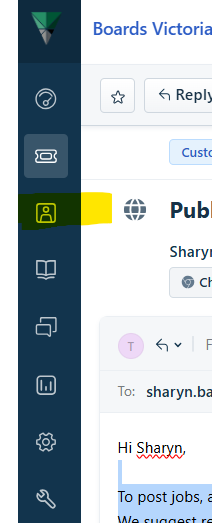
- A pop up window will appear, click on Contacts.
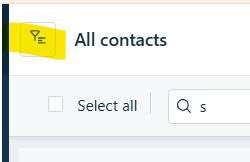
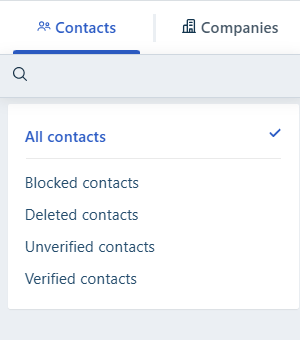
- Click on the Funnel icon to filter/narrow down search filters.
- Choose from the available options.
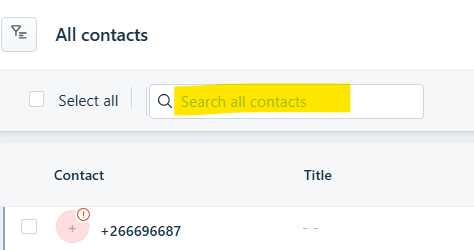
- Type in Name in the search field and suggestions will start to appear.
- When contact is found, click on the name of the contact.
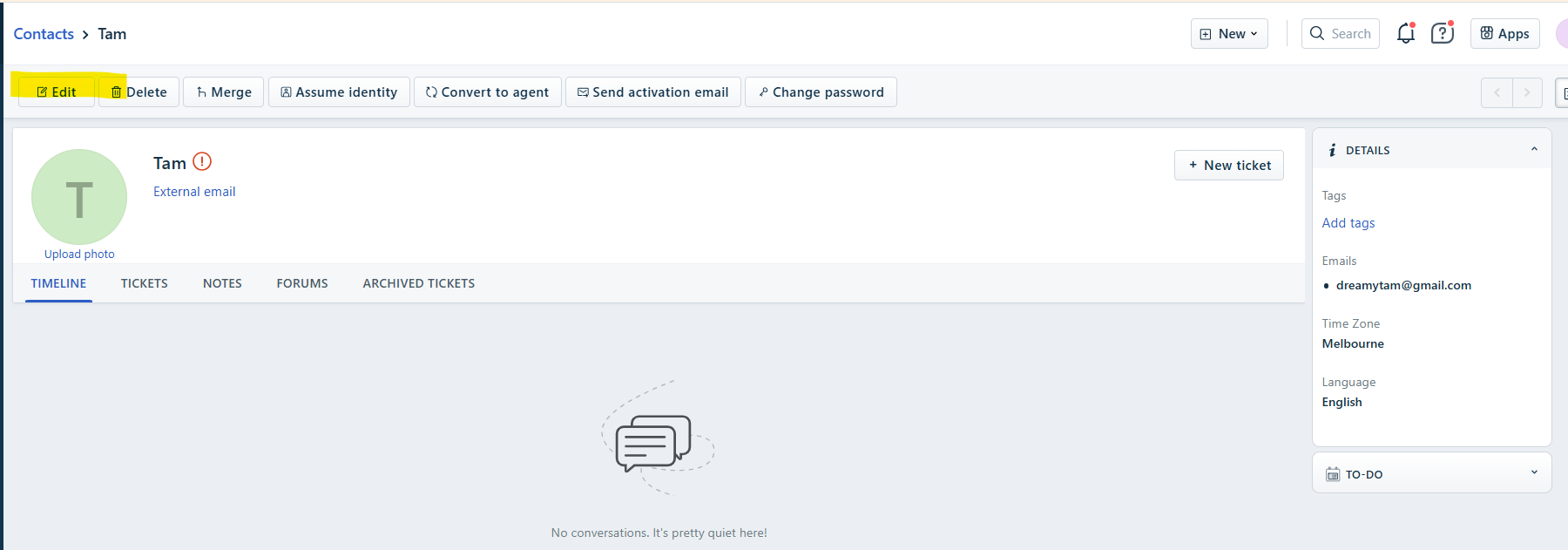
- Click on Edit from the top menu options.
- Edit Contact details and click on Update Contact when complete.
Was this article helpful?
That’s Great!
Thank you for your feedback
Sorry! We couldn't be helpful
Thank you for your feedback
Feedback sent
We appreciate your effort and will try to fix the article