- Ensure you have the correct signature block ready to paste into Freshdesk.
- You can do so by customising the signature from the Commission Sharepoint site or copy from your existing Outlook signature.
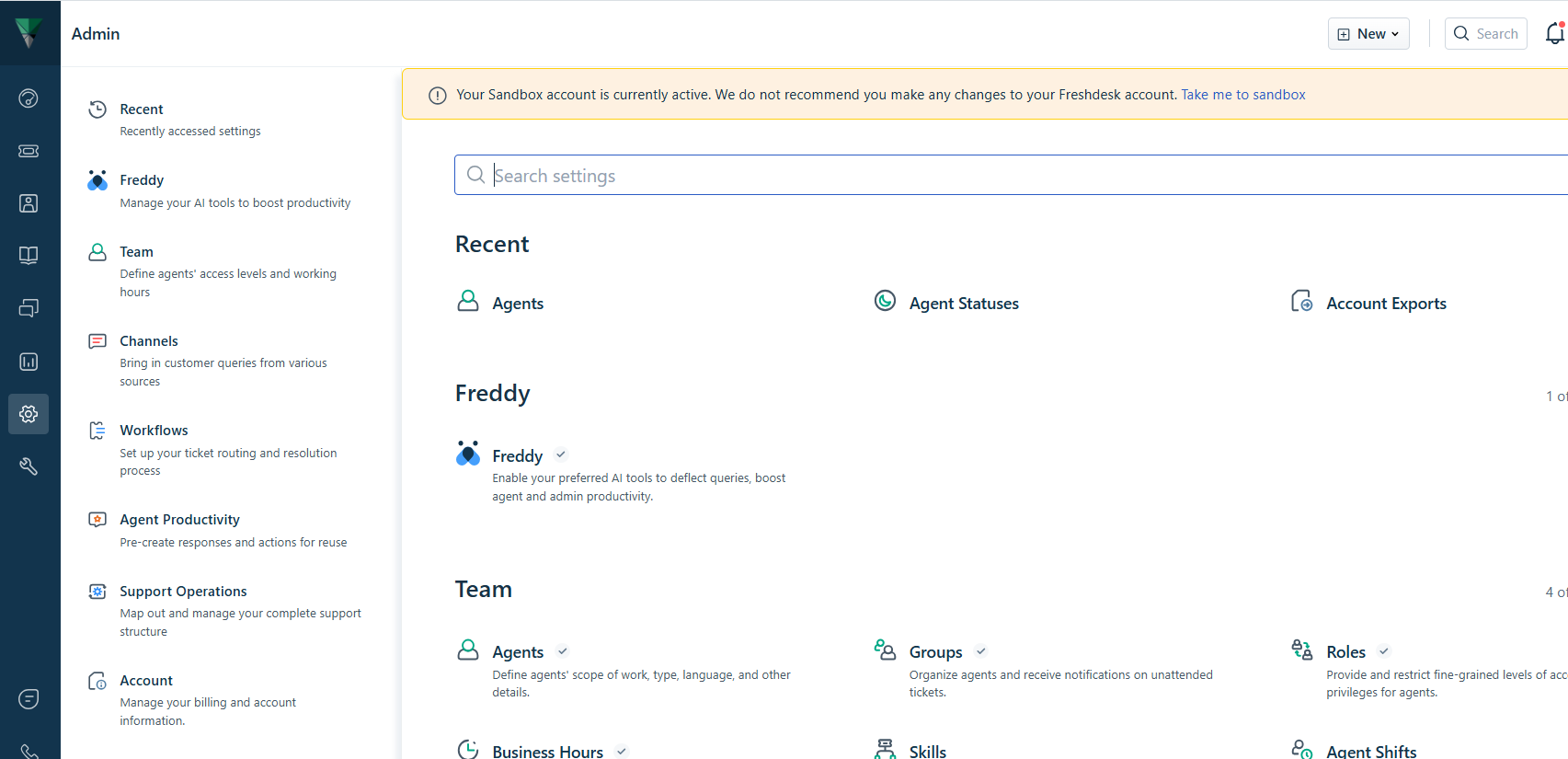
- Select the 'Admin' menu option from the main left hand side.
- Under the TEAM panel, select and click on Agents.
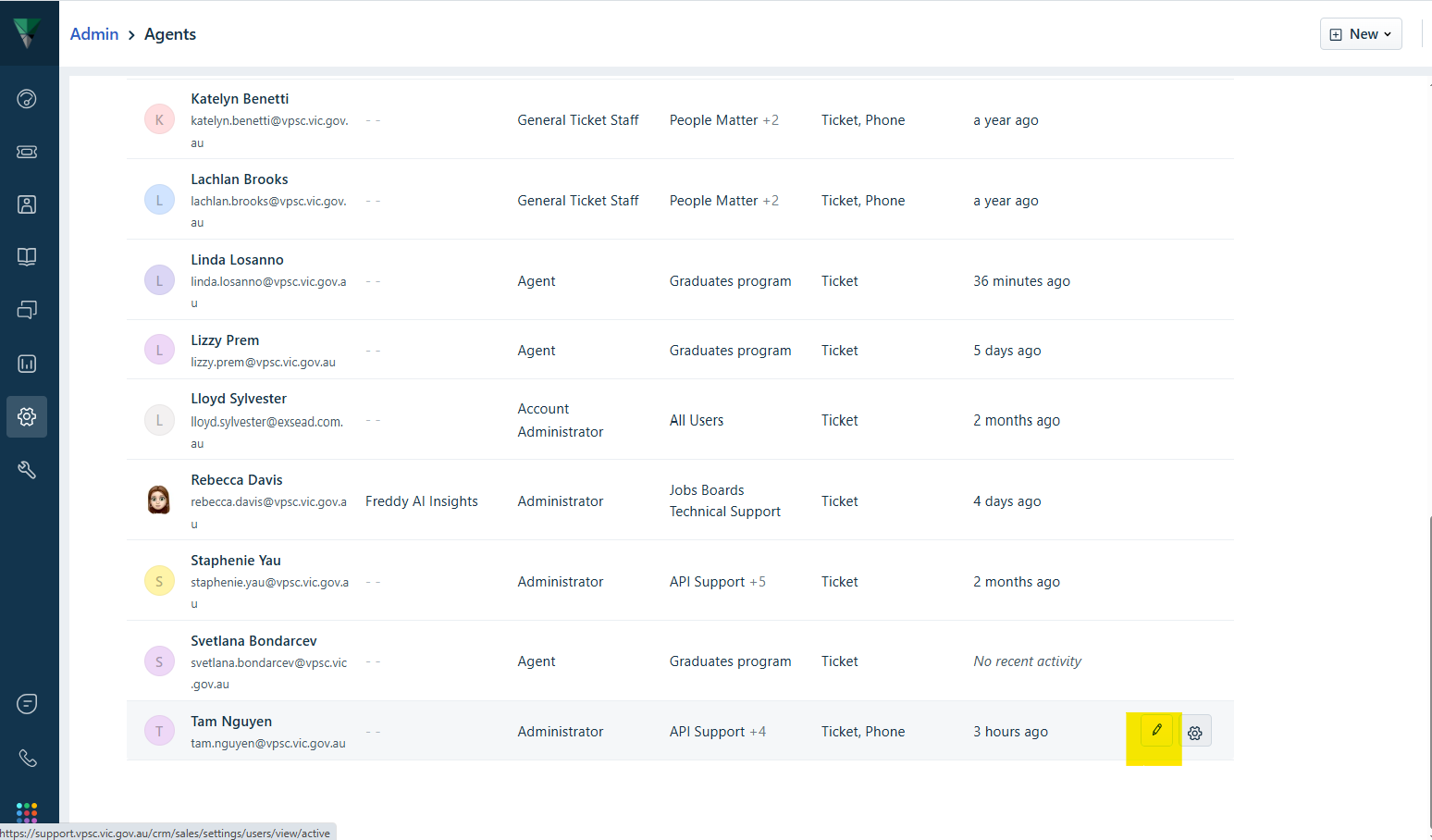
- Navigate to the agent you wish to create/update a signature for and hover the mouse towards the far right hand side of the agent until the edit/pencil and toggle buttons appears.
- Click on the edit/pencil icon.
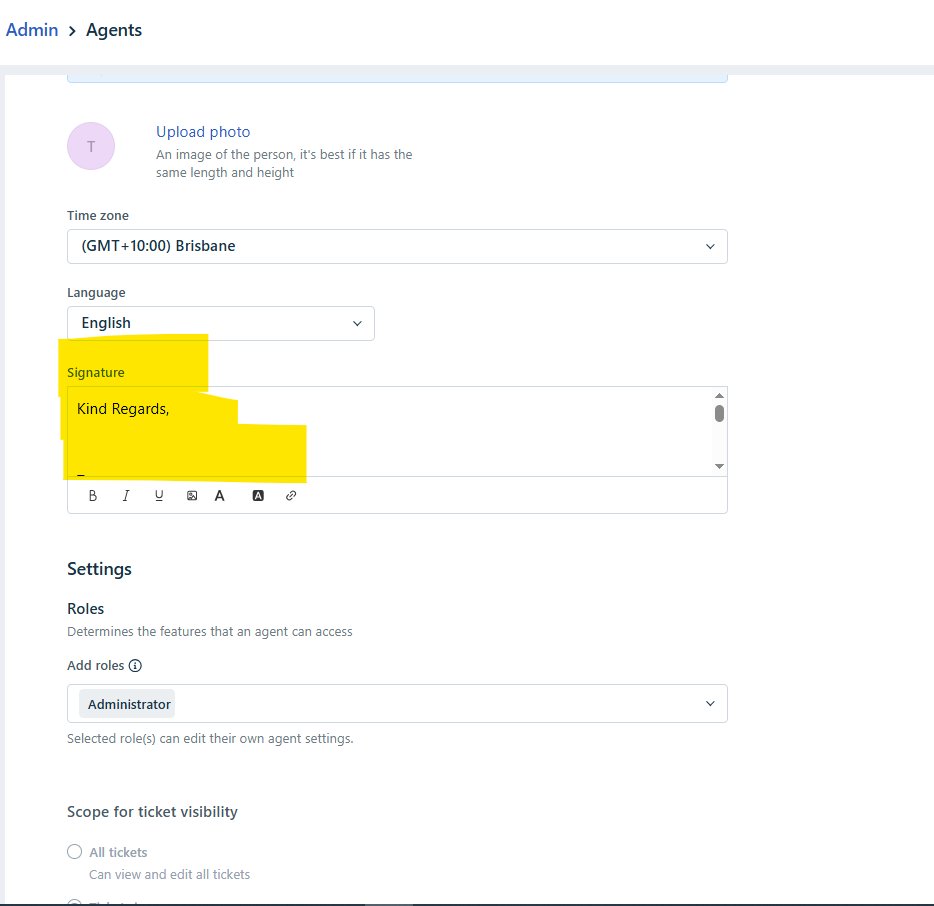
- Scroll down to the Signature section and edit as required.
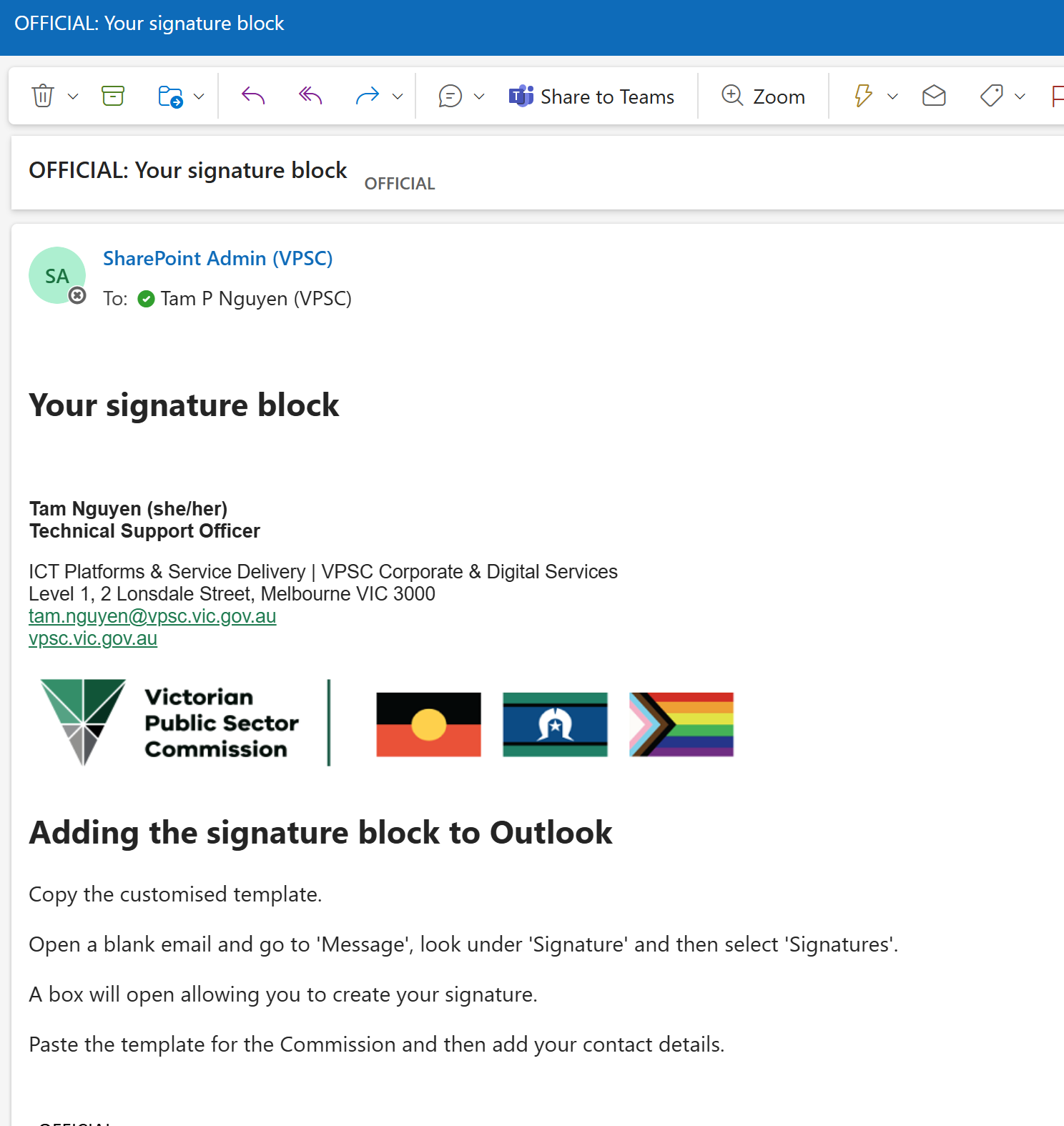
- To paste in the signature block, simply copy the signature block from your Outlook e-mail and paste it into Freshdesk.
- Branding images can also be pasted in and resized.
- If a new signature block was created from the Commission Sharepoint, the block can be copied from the e-mail provided from Sharepoint.
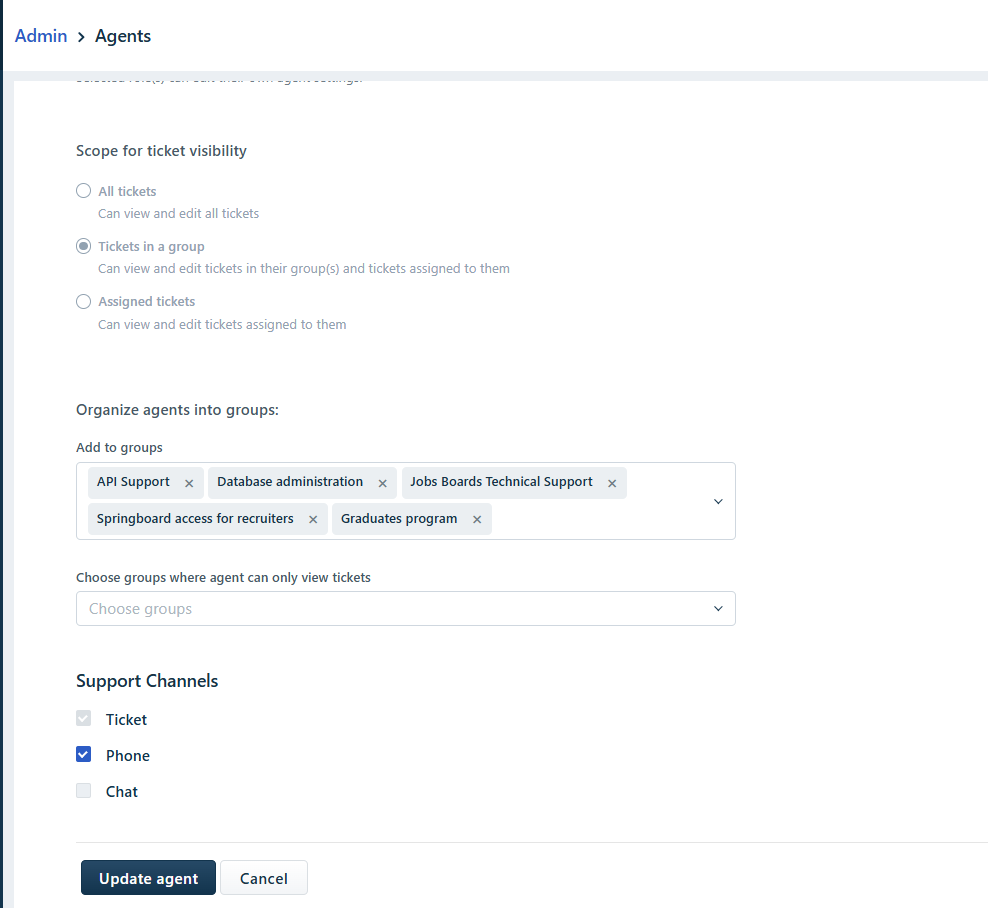
- Click on Update Agent at the bottom once ready to be saved.
- Check and test signature in Freshdesk by replying to a ticket.
Was this article helpful?
That’s Great!
Thank you for your feedback
Sorry! We couldn't be helpful
Thank you for your feedback
Feedback sent
We appreciate your effort and will try to fix the article