TABLE OF CONTENTS
- Create a new article
- Link to other knowledge articles or canned responses
- Link to other sections within the same knowledge article
CREATE A NEW ARTICLE
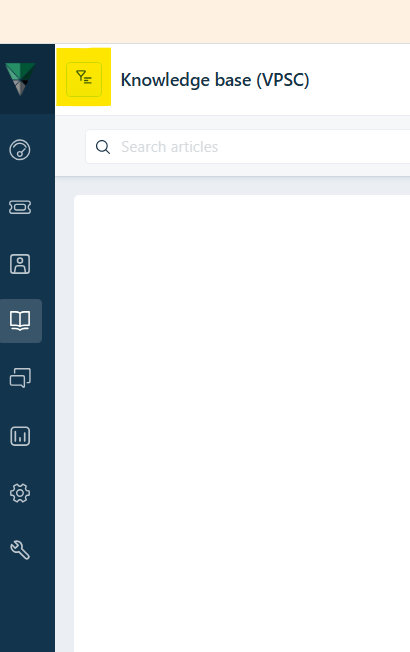
- Click on the 'Book' icon on the left hand side menu panel
- Click on the 'filter' icon
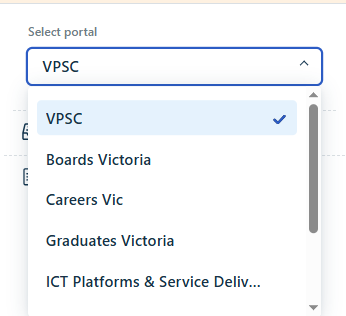
- A drop down list will appear with 'VPSC' as default.
- Select 'ICT Platforms & Service Delivery'
- The knowledge base structure is currently as below
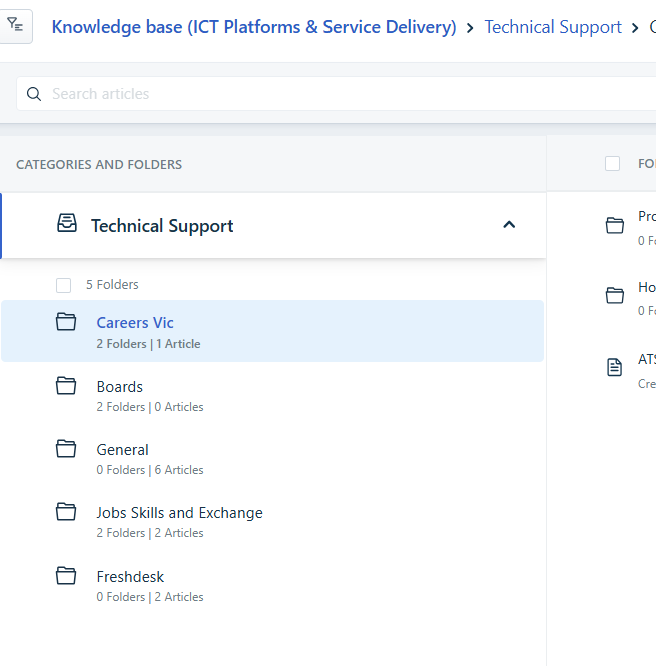
- Select the correct folder location for the new knowledge base article.
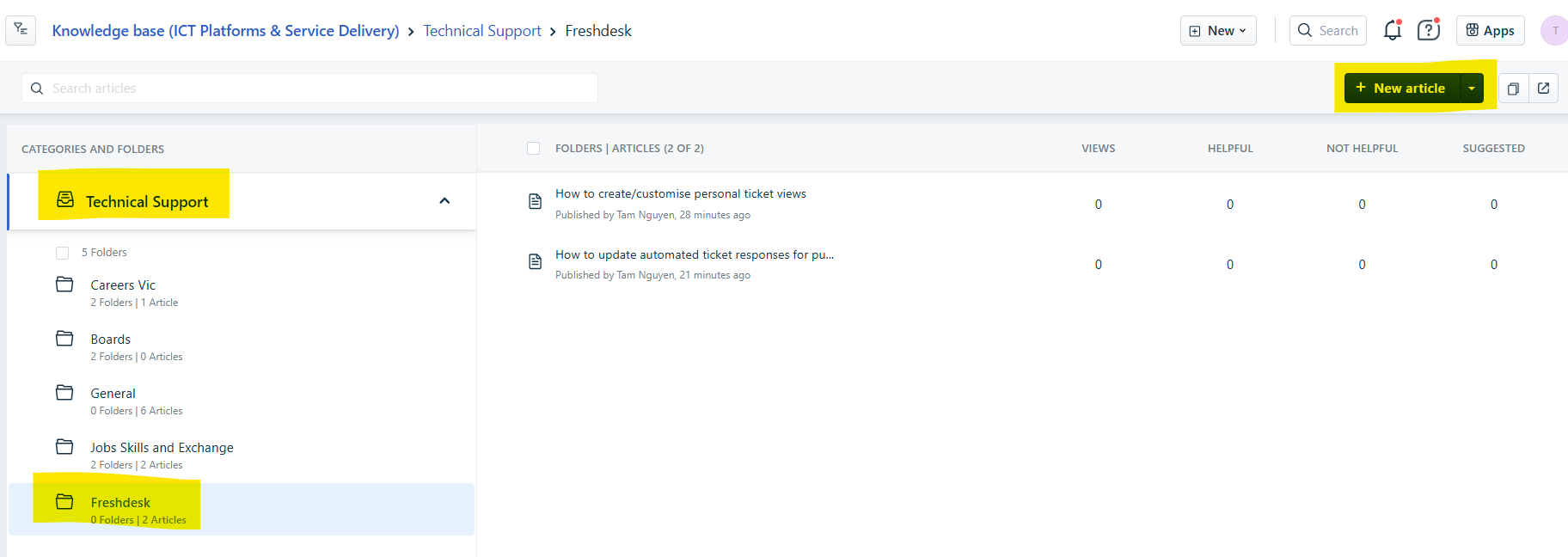
- Click on 'New Article' on the top right hand side.
- Give the new article a Title.
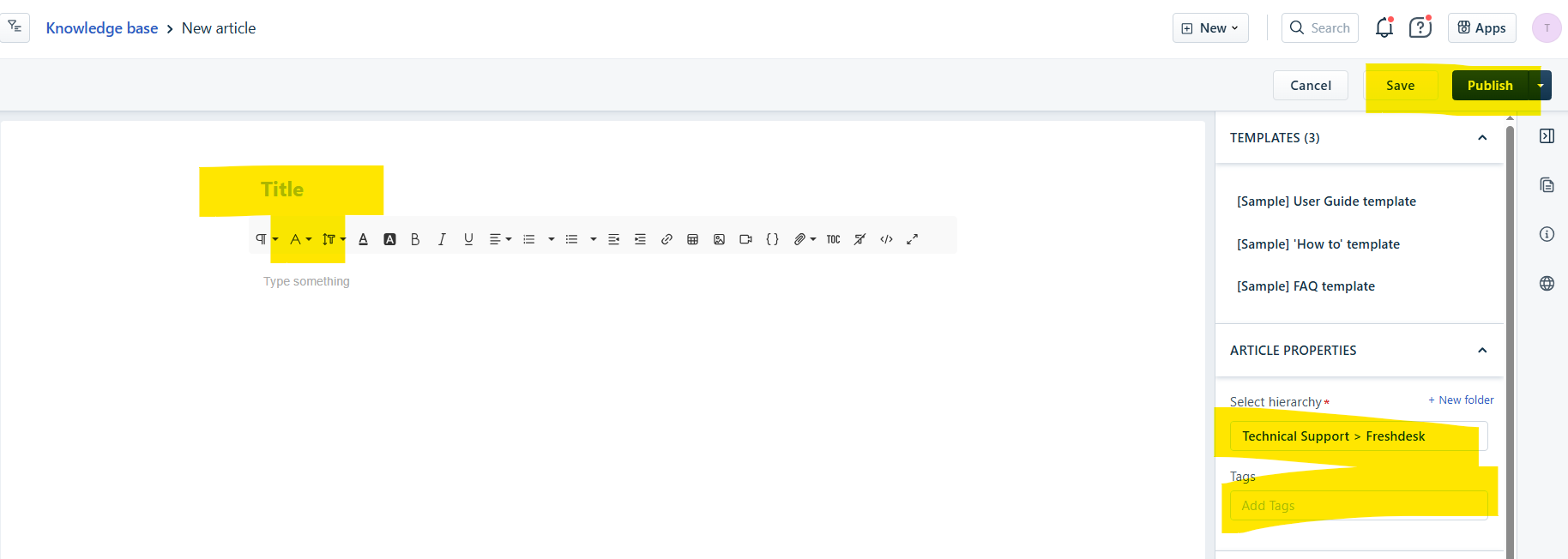
- Once the article is finished,check the hierarchy, add tags and click on Save and Publish.
- If the article needs to be reviewed by a fellow team member or manager, click on the down arrow next to Publish and select 'Send to review'.
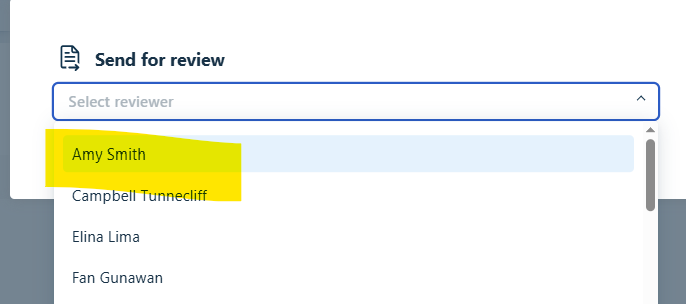

- Select reviewer and click on 'Send for review'.

LINK TO OTHER KNOWLEDGE ARTICLES OR CANNED RESPONSES
- Navigate to the EDIT menu panel on top, please click on the 'LINK' icon
- A new pop window will appear.
- Paste in the URL of the other knowledge article or canned response
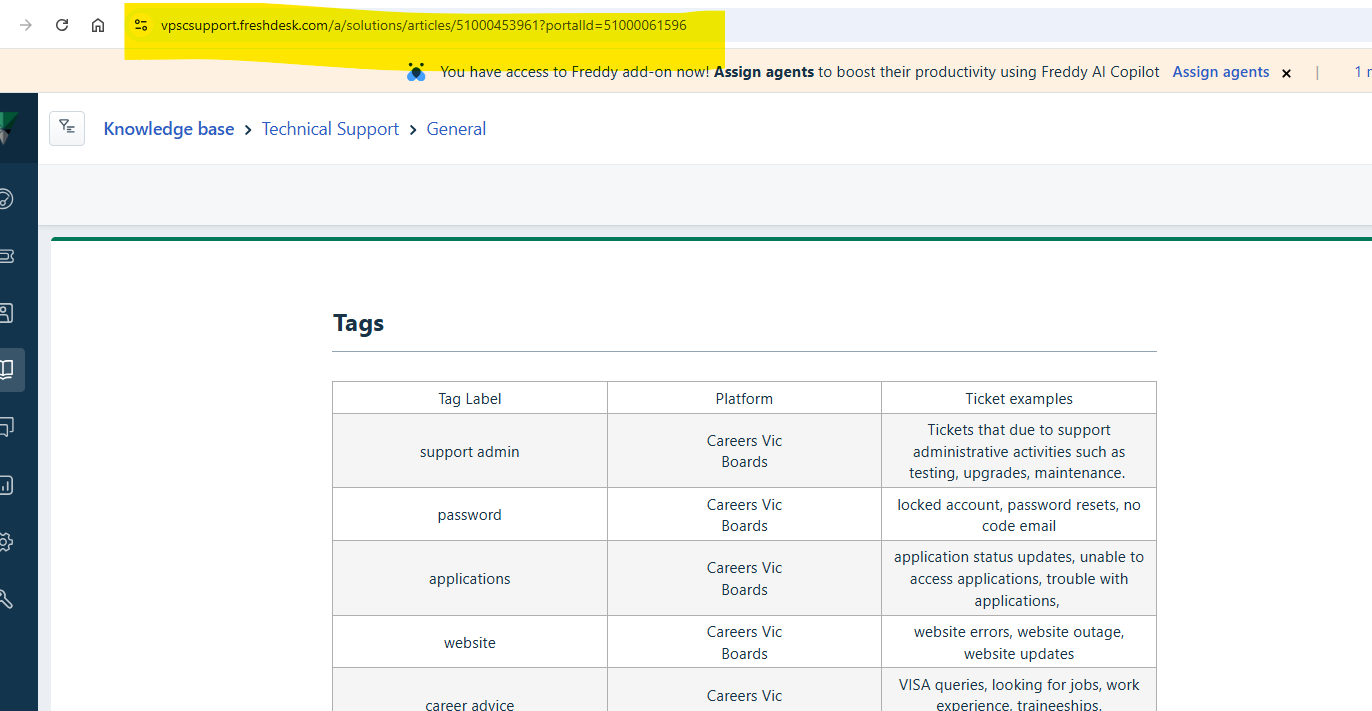
- Type in how the link is to appear in the knowledge article.
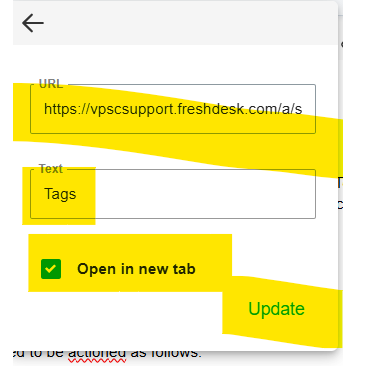
- Enter the text for how the link will appear within the current knowledge article being created.
- Select the 'OPEN IN NEW TAB' check box.
- Click on INSERT.
LINK TO OTHER SECTIONS WITHIN THE SAME KNOWLEDGE ARTICLE
- Links can be created which allows a user to navigate from one section to another within the same knowledge article.
- To do so, formatted headings is required for each section.
- Create a heading for each section of the knowledge article which will be efficient and clear for the user.
- Highlight the heading and select the 'q' looking icon from the EDITING toolbar.
- Select the Heading format you would like.
- Click SAVE.
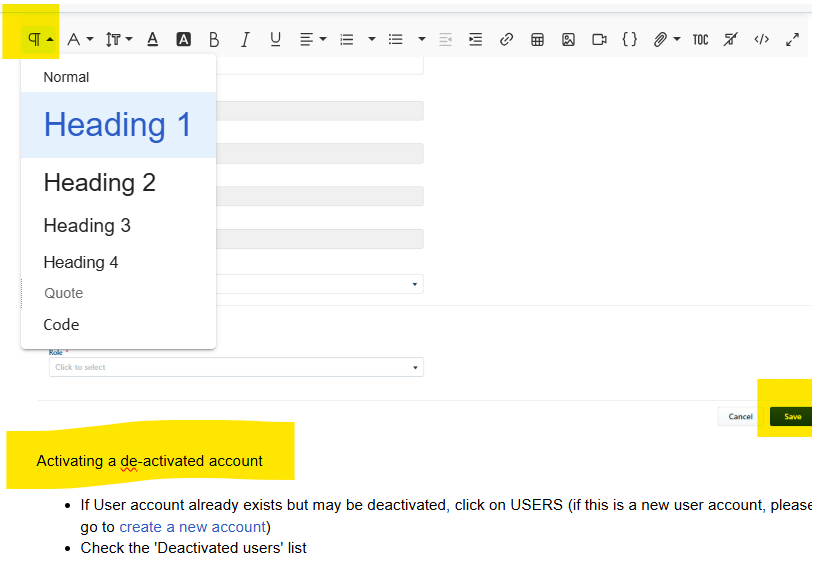 Once all headings have been created, navigate to the top of the knowledge article.
- Click on the 'TOC' option from the EDITING TOOLBAR.
- The Table of contents will be added.
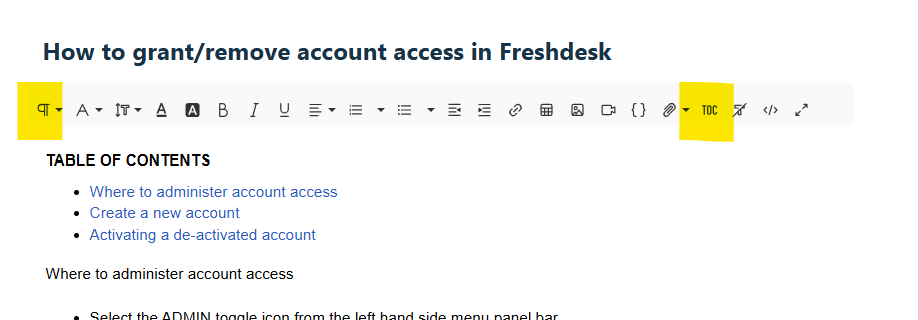
- Click on the TOC link
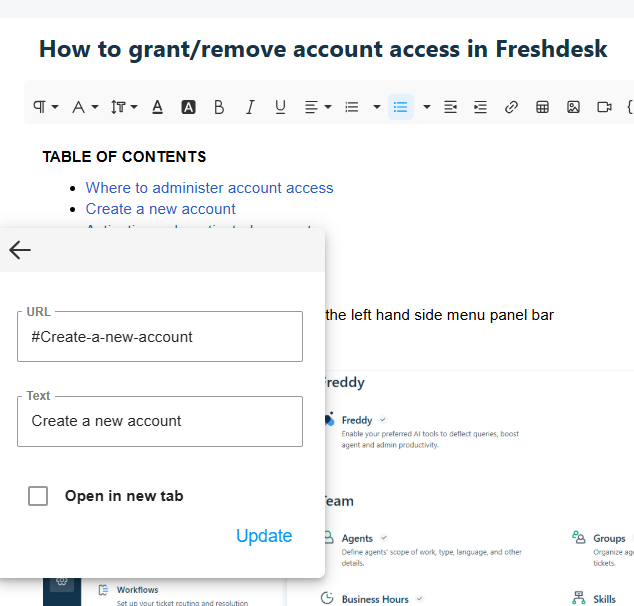 Copy the URL
 - Go to the section you would like to access this section within the knowledge page
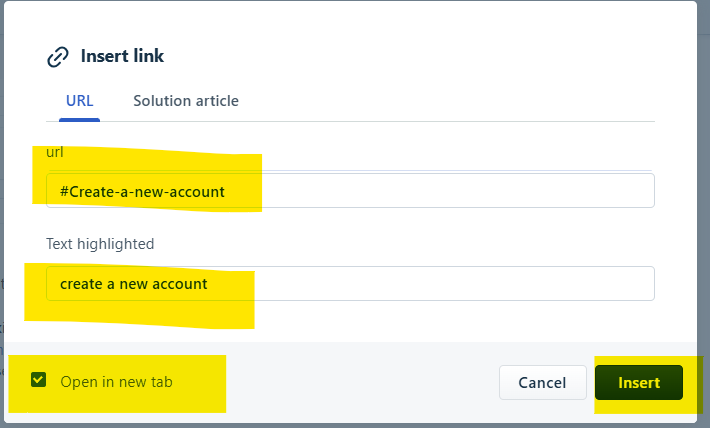
- Click on the 'LINK' icon from the 'EDITING TOOLBAR'.
- Paste in the copied URL
- Populate how you would like the link to appear within the solution article
- Tick 'OPEN IN NEW TAB'.
- Click on INSERT.
Was this article helpful?
That’s Great!
Thank you for your feedback
Sorry! We couldn't be helpful
Thank you for your feedback
Feedback sent
We appreciate your effort and will try to fix the article