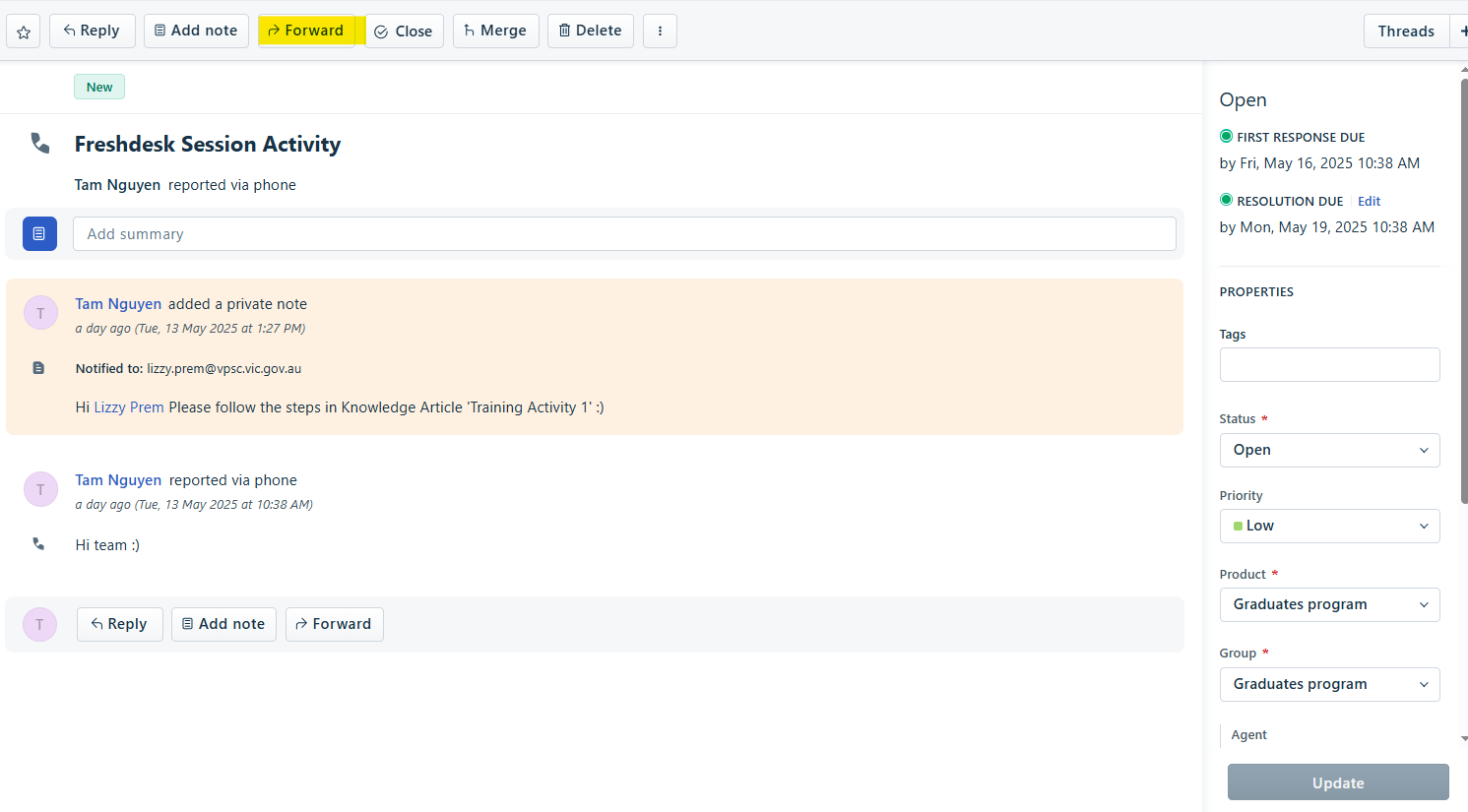
- Click on Forward from the top menu options
- A pop up window will appear:
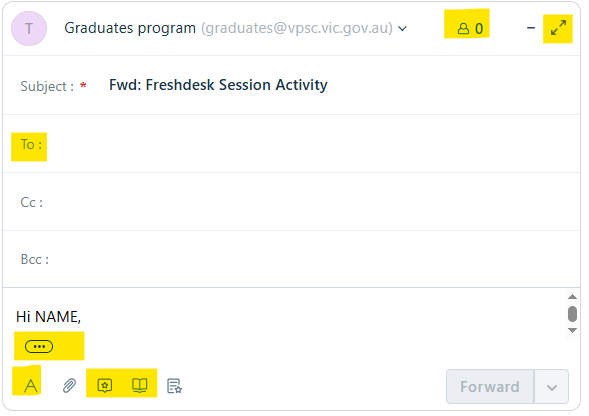
- The following table explains the features highlighted in YELLOW:
| Tool Function | Purpose |
|---|---|
 | Number of recipients the message will send to |
 | The main recipient contact |
 | Contact to receive a Carbon Copy |
 | Contact to receive a Blind Carbon Copy |
 | Access to the Editor Formatting Options |
 | Attach a document |
 | Access to Canned Responses |
 | Access to Knowledge Articles |
 | Expand message to see ENTIRE message |
- Edit the message.
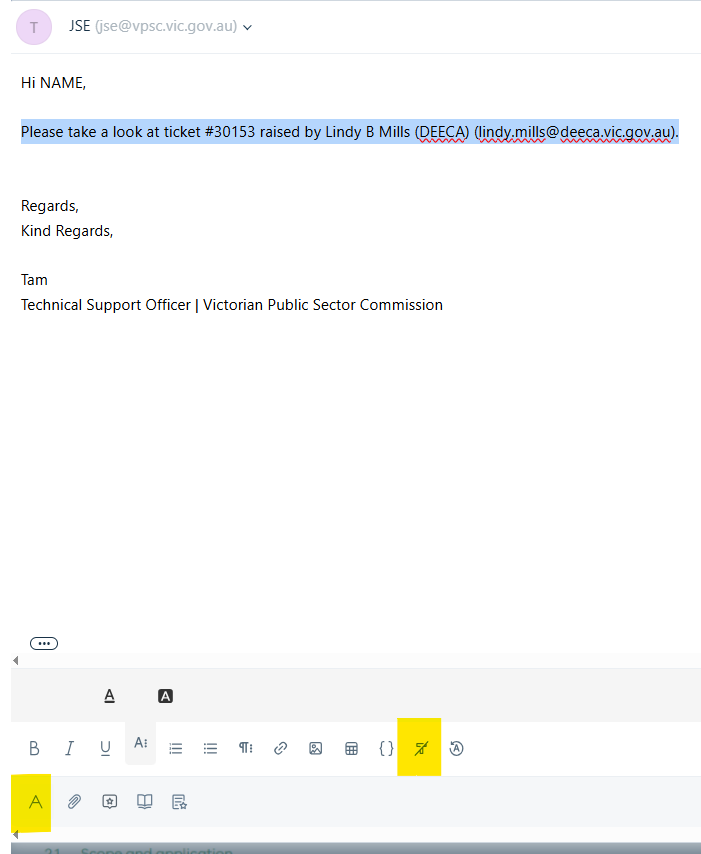
- To clear the text background that is currently highlighted in Yellow, highlight the text to be edited.
- Click on the A from the editor toolbox.
- Then click on the T with the slash to un-format the text.

- To change colour of the text background, click on A with the three dots.

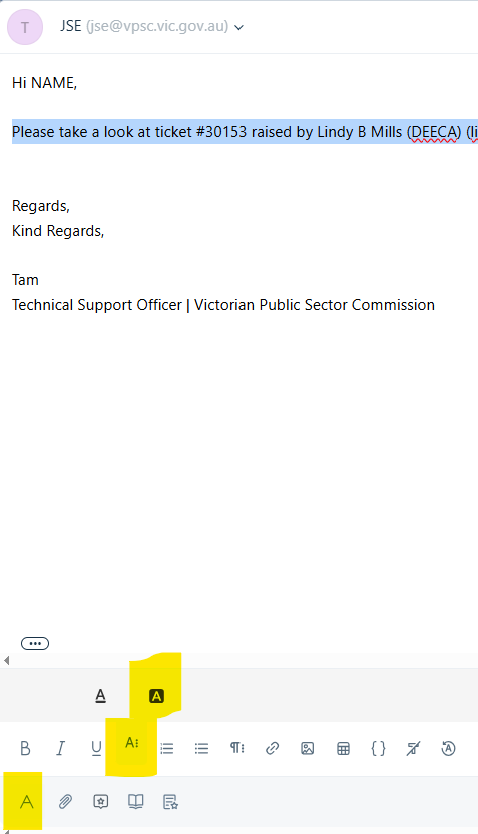
- Click on A in the black box.

- A pop up box with colours will appear.
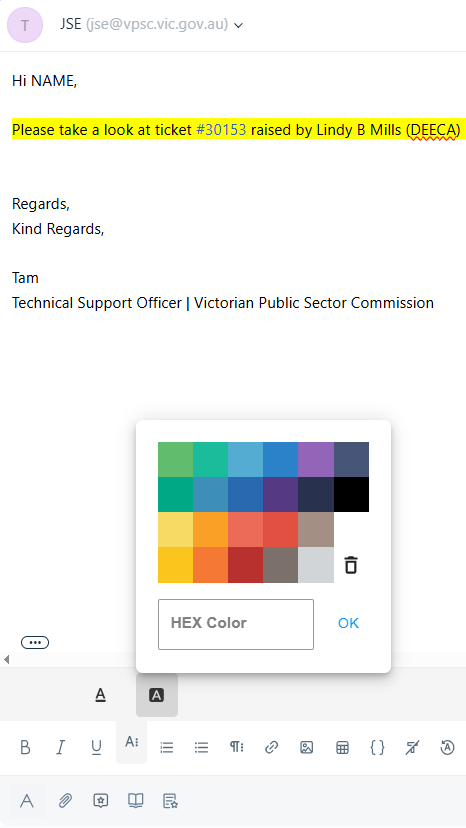
- Choose the colour you would you like. And click on OK.
- When Ready - click FORWARD to send message.
Was this article helpful?
That’s Great!
Thank you for your feedback
Sorry! We couldn't be helpful
Thank you for your feedback
Feedback sent
We appreciate your effort and will try to fix the article